Best Docking Station for Laptop – Home Office 2026
Category: Tech & Gear | Reading time: 12 min | Last updated: August 2026
Disclosure: This post contains affiliate links. If you buy through our links we may earn a small commission at no extra cost to you.
All picks at a glance
A docking station lets you connect a single cable to your laptop and instantly have access to multiple monitors, wired ethernet, USB peripherals, and charging. No more plugging and unplugging cables every time you sit down. This guide covers five docking stations for different use cases and budgets, plus a budget USB-C hub alternative for anyone who does not need full docking station functionality.
Jump to a pick
1. Anker Nano 13-in-1 — Best overall

The Anker Nano stands out because of its detachable design. The 13-in-1 desktop dock has a 6-in-1 portable hub that snaps off and goes with you when you leave the office. Most docking stations are desktop-only. This one replaces both your desk dock and your travel hub in a single purchase.
Triple display support through 2 HDMI ports and 1 DisplayPort covers most home office setups. The 100W Power Delivery charges your laptop simultaneously through the same cable connection. Setup is plug and play with no driver installation required, which matters for anyone who has dealt with the headache of DisplayLink driver installs.
3,000+ bought last month confirms strong real-world demand at this price point.
“The detachable hub is incredibly useful, allowing quick access to commonly used ports without reaching behind a desk. It’s essentially two products in one, a full desktop docking station and a portable travel hub. Setup was simple and essentially plug-and-play. Within minutes I had monitors, networking, storage devices, audio, and accessories connected through a single cable.”
Who it’s for: Anyone who wants a full desktop docking station that doubles as a portable hub for travel, or anyone who wants triple monitor support without driver installation hassle.
Pros:
- Detachable 6-in-1 portable hub — dock and travel hub in one
- Triple display support — 2x HDMI and 1x DisplayPort
- 100W Power Delivery
- Plug and play — no drivers needed
- 10Gbps USB-C data transfer
- 3K+ bought last month
- 18-month warranty
Cons:
- 358 reviews — lower review count than some alternatives
- macOS limited to mirrored display mode on multiple monitors
- Requires 140W power adapter included in box
| Spec | Detail |
|---|---|
| Ports | 13 total |
| Display outputs | 2x HDMI, 1x DisplayPort |
| Max display resolution | 4K@60Hz single, dual 2K@60Hz |
| Power Delivery | 100W |
| Data transfer | 10Gbps |
| Warranty | 18 months |
2. Plugable UD-6950PDH — Best for MacBook

Apple Silicon Macs from M1 through M5 have a hardware limitation that restricts most models to a single external display. The Plugable UD-6950PDH works around this using DisplayLink technology to enable dual 4K 60Hz monitors on MacBooks that would otherwise only support one. Named the Best DisplayLink Dock for MacBook by Macworld.
The aluminum housing matches the MacBook aesthetic well. At 15 ports it has enough connectivity for a full home office setup including ethernet, audio, SD card slots, and front-facing USB ports for easy access.
Worth noting that DisplayLink requires a driver installation on macOS and the screen recording permission prompt during setup is a legitimate part of the driver — it does not record your screen.
“The guy at the Apple Store told me what this dock does wasn’t possible with the MacBook Neo. Wow, was he wrong. The Neo paired with this dock allowed me to extend my screen to 2 HDMI 1440p displays plus the Neo’s display with no lag at all. It’s a solid device, no cheap plastic here. It feels premium. I’d buy this again in a heartbeat.”
Who it’s for: MacBook users on M1 through M5 who want to run two external monitors, or anyone who needs a premium MacBook-compatible dock with a clean aluminum design.
Pros:
- Enables dual 4K monitors on M1-M5 Macs
- Named Best DisplayLink Dock for MacBook by Macworld
- 100W laptop charging
- Aluminum housing
- 15 ports total
- Lifetime support from Plugable’s North American team
Cons:
- DisplayLink driver installation required
- Screen recording permission prompt during setup — legitimate but surprising
- HDCP not supported — protected streaming may not play on connected displays
| Spec | Detail |
|---|---|
| Ports | 15 total |
| Display outputs | 2x HDMI, 1x DisplayPort |
| Max display resolution | Dual 4K@60Hz |
| Power Delivery | 100W |
| MacBook compatibility | M1 through M5 |
| Warranty | Lifetime support |
3. Plugable UD-ULTC4K — Best triple monitor

The UD-ULTC4K is the most capable display dock in this guide. Six display outputs — 3 HDMI and 3 DisplayPort — support triple 4K 60Hz monitors simultaneously. Named Best Docking Station 2025 by How-To Geek and validated by 1,810 reviews at 4.2 stars.
This is the dock for anyone running a serious multi-monitor setup. Data analysts, traders, developers, and video editors who need three screens will find it hard to beat the UD-ULTC4K at this price point. The flexibility of mixing HDMI and DisplayPort outputs means you can connect virtually any combination of monitors without additional adapters.
DisplayLink drivers are required on macOS, Windows, and ChromeOS for full functionality.
“I’ve had many utility tools for connecting several monitors to my PC and they all had bad cabling or connections but this one is excellent with very strong ports and connections. It does not flicker or fail.”
Who it’s for: Anyone who runs or wants to run three external monitors, or anyone who needs the most display flexibility in a single dock.
Pros:
- Triple 4K 60Hz monitor support
- 6 display outputs — 3x HDMI and 3x DisplayPort
- Named Best Docking Station 2025 by How-To Geek
- 1,810 reviews — strongest review count among the docking stations in this guide
- 100W Power Delivery
- Lifetime support from North American team
Cons:
- DisplayLink driver required on all platforms
- HDCP not supported
- Largest and heaviest dock in this guide
| Spec | Detail |
|---|---|
| Ports | 13 total |
| Display outputs | 3x HDMI, 3x DisplayPort |
| Max display resolution | Triple 4K@60Hz |
| Power Delivery | 100W |
| Ethernet | Gigabit |
| Warranty | Lifetime support |
4. Belkin Thunderbolt 4 Dock — Best Thunderbolt 4
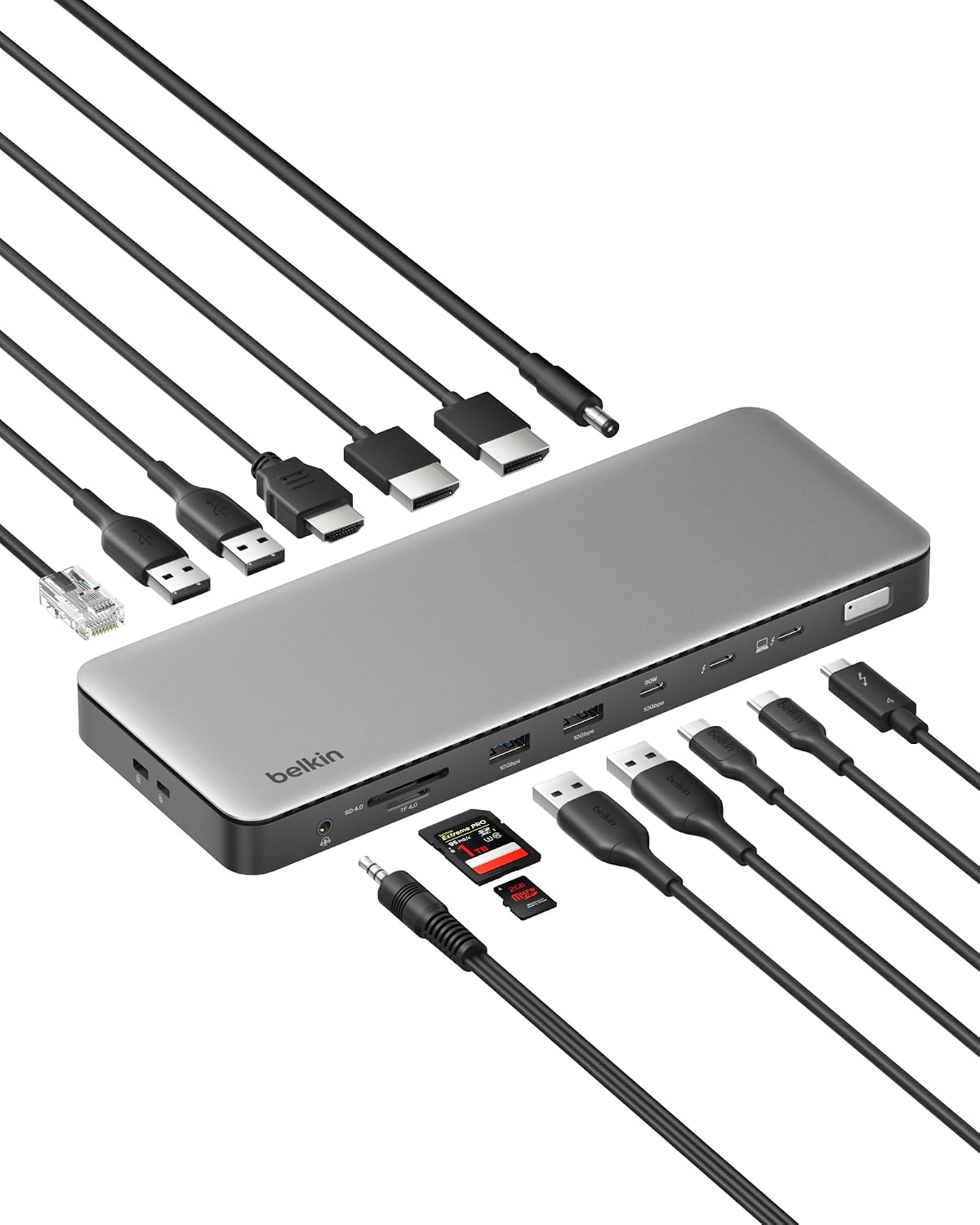
The Belkin is the only dock in this guide with native Thunderbolt 4 at 40Gbps. That matters for anyone using Thunderbolt storage, eGPUs, or other Thunderbolt peripherals where bandwidth is the limiting factor. The 2.5Gb ethernet is also the fastest wired networking option in this guide — 2.5 times faster than the standard gigabit ethernet on the other docks.
The 4.6 star rating is the highest in this guide though only from 21 reviews so that number will settle as more reviews come in. The 3-year warranty with up to $2,500 coverage is the longest warranty here by a significant margin. The 6-point safety system including fire-resistant materials gives confidence for a device that stays plugged in and running all day.
Daisy chaining up to 6 Thunderbolt devices through the dock keeps desk cable management clean.
Who it’s for: Anyone who needs native Thunderbolt 4 speeds, the fastest wired ethernet in this guide, or the longest warranty coverage.
Pros:
- 40Gbps Thunderbolt 4 native speeds
- 4.6/5 stars — highest rated dock in this guide
- 2.5Gb ethernet — fastest wired networking here
- 3-year warranty up to $2,500 coverage
- Daisy chain up to 6 devices
- Triple 4K monitor support
- 6-point safety system
Cons:
- 21 reviews — lowest review count in this guide
- Requires Thunderbolt 4 host for maximum performance
- Only 1 HDMI port — DisplayPort adapters needed for additional monitors
| Spec | Detail |
|---|---|
| Ports | 14 total |
| Interface | Thunderbolt 4 at 40Gbps |
| Display outputs | Triple 4K@60Hz |
| Power Delivery | 96W |
| Ethernet | 2.5Gb |
| Warranty | 3 years up to $2,500 |
5. CalDigit TS4 — Best premium

The CalDigit TS4 is the most port-dense dock in this guide at 18 ports. Three Thunderbolt 4 ports running at 40Gbps each means you can daisy chain Thunderbolt storage, connect an eGPU, and still have ports left over. The 8x USB ports all run at 10Gbps — most docks mix slower USB 2.0 ports in to pad the port count. The TS4 does not.
SD and microSD 4.0 UHS-II is the fastest card reader standard available, meaningful for photographers and video editors who regularly transfer large files. Three audio ports cover input, output, and headset simultaneously. The 98W charging is the highest in this guide.
Display support goes up to single 8K on Windows or dual 6K 60Hz on M1 Pro and above Macs. The TS4 is the dock that creative professionals and power users tend to settle on for long-term use.
“It is by far the cleanest, reliable and fast dock I have ever used. It connects as soon as I plug in my computer without fail. It never overheats and just works. The amount of ports on the front and back allows me to connect all my peripherals without needing a USB hub. With the Thunderbolt 4 connections it’s definitely future proofed. I don’t see any reason why I can’t continue to use this dock for the next 5-10 years.”
Who it’s for: Power users, creative professionals, and anyone who needs the maximum number of high-speed ports available in a single dock.
Pros:
- 18 ports — most in this guide
- 3x Thunderbolt 4 at 40Gbps
- 8x USB ports all at 10Gbps
- SD and microSD 4.0 UHS-II card readers
- 98W charging — highest in this guide
- 2.5Gb ethernet
- 3 audio ports simultaneously
Cons:
- Most expensive dock in this guide
- Vertical form factor takes up more desk space
- M1-M3 base Macs limited to single external display due to hardware limitations
| Spec | Detail |
|---|---|
| Ports | 18 total |
| Thunderbolt 4 ports | 3x at 40Gbps |
| USB ports | 8x at 10Gbps |
| Power Delivery | 98W |
| Ethernet | 2.5Gb |
| Card reader | SD and microSD 4.0 UHS-II |
6. UGREEN Revodok Pro — Budget USB-C hub alternative

Worth being clear about what the UGREEN Revodok Pro is — it is a USB-C hub, not a traditional docking station. It does not have a power adapter, does not sit on a desk as a standalone unit, and does not support multiple monitors. It plugs directly into your laptop’s USB-C port and adds ports.
What it does well is provide the most essential ports in the smallest possible package at the lowest possible price. 4K 60Hz HDMI, fast USB-C and USB-A data ports, and 100W Power Delivery cover the needs of most people who just want to stop unplugging cables when they move their laptop. At 6,982 reviews and 4K+ bought last month it is one of the most validated USB-C hubs available.
If you want a true docking station with a power adapter and full peripheral support, choose one of the five docks above. If you just need a few extra ports and a single monitor connection without spending much, the UGREEN is the pick.
“It’s a great little hub with all of the IO I need. It feels reasonably sturdy, has a braided cable and even a faint little LED to let you know when it’s actually plugged in. Easy to use and can charge attached devices at up to 100 watts. I’m pretty happy with the purchase and will definitely consider UGREEN for my needs in the future.”
Who it’s for: Anyone who needs a few extra ports and a single monitor connection without the cost or desk footprint of a full docking station.
Pros:
- 6,982 reviews — most reviewed product in this guide
- 4K 60Hz HDMI
- All ports at 10Gbps
- 100W Power Delivery
- No power adapter needed — bus powered
- Compact and portable
- 4K+ bought last month
Cons:
- Not a true docking station — no power adapter, no multiple monitors
- 6 ports only
- Single monitor output
| Spec | Detail |
|---|---|
| Ports | 6 total |
| Display outputs | 1x HDMI 4K@60Hz |
| Power Delivery | 100W |
| Data transfer | 10Gbps |
| Power source | Bus powered |
| Form factor | Portable hub |
How to choose
You want a versatile dock that also works for travel: Anker Nano. The detachable hub design is unique and genuinely useful.
You have a MacBook and want dual monitors: Plugable UD-6950PDH. DisplayLink technology works around Apple’s display limitations.
You run three monitors: Plugable UD-ULTC4K. Six display outputs, triple 4K support, named best dock by How-To Geek.
You need native Thunderbolt 4 speeds and the best warranty: Belkin Thunderbolt 4. 40Gbps, 2.5Gb ethernet, 3-year coverage.
You are a power user who needs maximum ports and speed: CalDigit TS4. 18 ports, all USB at 10Gbps, the dock that professionals settle on long-term.
You just need a few extra ports without spending much: UGREEN Revodok Pro. A USB-C hub rather than a true dock, but the most reviewed option available.
For more home office connectivity see our best USB hubs for home office guide and our best monitors for work from home guide. For a full ergonomic setup see our ergonomic home office guide.
Frequently asked questions
What is the difference between a docking station and a USB-C hub?
A docking station is a powered standalone unit that sits on your desk, connects to the wall for power, and supports multiple monitors, ethernet, and a full range of peripherals through a single cable. A USB-C hub is a compact unpowered device that plugs directly into your laptop port and adds a smaller number of ports. Docking stations cost more and do more. USB-C hubs are portable and affordable but have limitations.
Do I need Thunderbolt for a docking station?
Not necessarily. Thunderbolt gives you faster data speeds and more bandwidth which matters for multiple 4K monitors, fast external storage, and eGPUs. USB-C docks work well for most home office setups with one or two monitors and standard peripherals. If you are unsure, check whether your laptop has a Thunderbolt port first.
Will a docking station for laptop work with my MacBook?
Most docking stations in this guide work with MacBooks. The important thing to know is that M1 through M3 base MacBooks support only one external display natively. The Plugable UD-6950PDH uses DisplayLink technology to work around this and enable dual monitors. The CalDigit TS4 and Belkin Thunderbolt 4 support dual monitors on M1 Pro and above chips natively.
Do docking stations require driver installation?
It depends on the dock. The Anker Nano is plug and play with no drivers needed. Both Plugable docks require DisplayLink driver installation on macOS and ChromeOS. The CalDigit TS4 and Belkin are plug and play on most systems.
Continue reading
All prices approximate and subject to change. Check current pricing at checkout. Last updated August 2026.