Best Budget Monitors for Work From Home 2026: 6 Picks
Category: Tech & Gear | Reading time: 15 min | Last updated: June 2026
Disclosure: This post contains affiliate links. If you buy through our links we may earn a small commission at no extra cost to you.
All 6 picks at a glance
“Budget monitor” means different things depending on what you’re actually shopping for. A budget standard 1080p monitor sits under $100. A budget ultrawide is under $250. A budget 4K is under $200. All three categories are represented in this guide — and in every case, the picks below offer genuinely good value for the price tier they’re in, not just the lowest possible cost.
The Philips at $74.99 is the clearest budget win — a well-built, frameless 24″ monitor with multiple size options that suits most remote workers who just need a clean, reliable display for documents, video calls, and general daily work. Everything else in this guide is budget for its specific category: curved, ultrawide, or 4K monitors that would cost two or three times more at their premium equivalents.
Not sure whether you want one screen or two? Our ultrawide vs dual monitors comparison covers which setup fits the way you work before you pick a model.
If you’re building a dual monitor setup, see our guide to setting up dual monitors for home office — the Philips and Acer picks below both work well as dual monitor pairs.
A laptop stand pairs naturally with an external monitor — our laptop stands guide covers eight options from $7.99 to $54 including a docking station stand that connects your monitor and peripherals in one.
Jump to a monitor
1. Philips 24″ 100Hz — Best overall

The Philips 241V8LB earns the top spot through a combination that’s hard to beat at this price: a virtually frameless design, a VA panel with 178° viewing angles, 100Hz refresh rate, and a starting price of $74.99. It’s the kind of monitor that simply does everything a remote worker needs without asking you to compromise on anything that actually matters for daily work.
The frameless design on three sides isn’t just aesthetic — it makes the screen feel noticeably larger than its 23.8″ actual size, and it pairs naturally with a second monitor if you ever decide to expand. The VA panel delivers deeper blacks and better contrast than comparable IPS panels at this price, which makes a real difference when you’re staring at documents and spreadsheets for hours.
One of the strongest selling points is the size range: the same monitor is available in 22″ ($64.99), 24″ ($74.99), 24″ at 120Hz ($79.99), 27″ ($89.97), and 27″ at 120Hz ($98.98). Whatever desk size or budget you’re working with, there’s almost certainly a Philips configuration that fits. The 4-year advance replacement warranty is also notably better than the standard 1-3 year coverage most budget monitor competitors offer.
EasyRead mode is a practical addition for remote workers specifically — it adjusts the display to a warmer, paper-like tone that reduces eye strain during extended document reading, something the budget monitors from less work-focused brands often skip.
“The frameless design lends an elegant, modern aesthetic that seamlessly integrates into any workspace — it creates the illusion of a larger screen while conserving valuable desk space. Picture quality is exceptional: text appears remarkably sharp and colors are vibrant and lifelike. I’ve spent several hours in front of this monitor working on projects, watching movies, and juggling multiple applications, and it minimizes eye strain during long days. Considering the price point, this monitor truly stands out in both quality and design.”
Who it’s for: Anyone who wants the most reliable, proven budget monitor for daily remote work without overthinking the decision. The multiple size options and 4-year warranty make this the default safe choice in this category.
Pros:
- Lowest price in this guide for a full-featured work monitor
- Frameless design feels larger than spec’d size
- 178° wide viewing angles — consistent color from any angle
- Available in 5 size/refresh rate configurations
- 4-year advance replacement warranty — best in this guide
- EasyRead mode for document-heavy work
- 10,000+ bought last month — most proven pick here
Cons:
- VA panel rather than IPS — slightly slower response times for fast motion
- Glossy screen surface can produce reflections in bright rooms
- Single HDMI and single VGA port — limited connectivity compared to more expensive options
| Spec | Detail |
|---|---|
| Price | From ~$74.99 |
| Screen size | 22″, 24″, or 27″ |
| Panel type | VA |
| Resolution | 1920 x 1080 FHD |
| Refresh rate | 100Hz or 120Hz |
| Connectivity | HDMI x1, VGA x1 |
| Warranty | 4 years |
2. Acer 27″ IPS 120Hz — Best for work and gaming

If your workday involves color-accurate work — photo editing, graphic design, video calls where skin tones matter — or if you game after work and don’t want to compromise your monitor for either use, the Acer KB272 is the pick. The IPS panel with 99% sRGB coverage gives it noticeably better color accuracy than the VA-based Philips, and 120Hz with 1ms VRB response time means gaming performance doesn’t require sacrificing work quality.
At 27″ it gives you meaningfully more screen real estate than the Philips 24″ for multitasking — keeping a document and a video call open side by side is more comfortable on a 27″ than a 24″ without needing to go ultrawide. The matte screen surface is also a practical improvement over the Philips’ glossy panel for anyone working in a room with windows or bright overhead lighting.
FreeSync compatibility means your GPU and monitor stay in sync during gaming or video playback, eliminating the screen tearing that can occur when frame rates and refresh rates don’t match. For pure office work this doesn’t matter at all, but if you do anything gaming-adjacent (video editing, GPU-intensive tasks) it’s a meaningful technical advantage.
“Picked this up as a secondary monitor and it’s been a great addition. Image clarity is excellent — text is sharp, colors are clean, and easy on the eyes even after long work sessions. For email, documents, spreadsheets, and keeping reference material open, it does exactly what I need without any fuss. The 27-inch size is perfect for a second screen, giving plenty of space without overwhelming the desk. Setup was quick, the stand is stable, and it paired seamlessly with my primary monitor. Very solid option for a clear, reliable secondary display.”
Who it’s for: Remote workers who also game, or anyone doing color-sensitive work who wants accurate, well-calibrated color at a budget price. Also a strong option if you’re considering running two monitors and want a solid 27″ as your primary display.
Pros:
- IPS panel with 99% sRGB — better color accuracy than VA alternatives
- 120Hz and 1ms VRB — genuinely good gaming performance
- 27″ matte screen — practical for bright rooms and multitasking
- FreeSync compatible
- Strong 1,782 review backing at 4.6 stars
Cons:
- More expensive than the Philips top pick
- 1080p at 27″ is a lower pixel density than 4K at the same size — text can look slightly less sharp
- Limited to HDMI and VGA connectivity
| Spec | Detail |
|---|---|
| Price | ~$149.99 |
| Screen size | 27″ |
| Panel type | IPS |
| Resolution | 1920 x 1080 FHD |
| Refresh rate | 120Hz |
| Response time | 1ms VRB |
| Color | 99% sRGB |
3. Samsung 27″ Curved — Best curved monitor

A curved monitor at $169.99 is genuinely budget for the category — comparable curved monitors from Samsung and competitors often start at $250-300. The 1800R curvature wraps the display more closely around your field of vision than a flat screen, which creates a more immersive viewing experience and reduces the eye movement required to scan from one side of the screen to the other during a long workday.
The TÜV-certified Eye Saver Mode is worth highlighting specifically — TÜV Rheinland certification is a verified, third-party assessment of blue light reduction and flicker-free performance, not just a manufacturer’s marketing claim. For remote workers spending 8+ hours in front of a screen, that verification actually matters.
Worth being upfront about: 62 reviews is the smallest sample in this guide. At 4.6 stars that average is strong, but with a small sample size there’s simply less long-term validation to point to than the Philips or Acer picks. Samsung’s brand reliability helps offset some of that uncertainty — this isn’t an unknown manufacturer.
“This monitor hits a sweet spot — large 27-inch screen, clean professional look, reliable performance without paying for features you don’t need. It’s not meant for high-end color grading or competitive gaming, but for office work, emails, spreadsheets, and general business use it’s exactly what you want. The curved design improves focus, 100Hz is smooth, and the eye care features make it comfortable for long hours. It won’t impress you with flashy features, but it quietly makes your workday smoother and more comfortable — which is exactly what a good office monitor should do.”
Who it’s for: Anyone who’s been curious about curved monitors but hasn’t wanted to pay premium prices to try one. $169.99 is a genuinely reasonable entry point for a Samsung curved display, especially with the TÜV eye care certification for long work sessions.
Pros:
- Curved display at a budget-friendly price for the category
- TÜV-certified Eye Saver Mode — verified, not just claimed
- Samsung brand reliability
- 100Hz for smooth video and light gaming
- Game Mode included for versatility
Cons:
- Smallest review count in this guide — less long-term validation
- 1080p at 27″ — lower pixel density than 4K options
- Connectivity limited to HDMI and D-sub
- Not ideal for color-critical work
| Spec | Detail |
|---|---|
| Price | ~$169.99 |
| Screen size | 27″ |
| Panel type | VA curved (1800R) |
| Resolution | 1920 x 1080 FHD |
| Refresh rate | 100Hz |
| Eye care | TÜV-certified Eye Saver Mode |
4. LG 34″ UltraWide — Best flat ultrawide

An ultrawide monitor replaces the need for two separate monitors in many remote work scenarios — the 21:9 aspect ratio gives you roughly 30% more horizontal screen space than a standard 16:9 display, letting you keep a document, a browser, and a video call visible simultaneously on one screen without switching windows. At $199.99 this is budget pricing for a 34″ ultrawide from LG.
The USB-C connectivity is the standout feature for remote workers specifically. A single USB-C cable from your laptop connects to this monitor and handles both display output and data transfer simultaneously — meaning fewer cables on your desk and a cleaner setup overall. This pairs naturally with your cable management setup and the general desk organization approach your whole home office is built around.
Built-in Waves MaxxAudio speakers are a genuine bonus for video calls and casual media — not audiophile-grade, but capable enough to replace a separate small speaker if desk space is limited. The Switch app’s ability to split the screen into up to 6 sections makes multitasking on the ultrawide format more structured than just manually resizing windows.
Worth flagging honestly: 4.2 stars at only 62 reviews means this is less validated than the Philips or Acer picks. It’s also currently discounted from $299.99 to $199.99 — worth verifying the current price at checkout since sale pricing on monitors can change frequently.
“Great value overall, but two things worth knowing: the USB-C port does not power your laptop, so you won’t get true single-cable connectivity if that’s what you’re after. Also, a 34-inch ultrawide that isn’t curved can be a bit difficult to view — you end up moving your head to look at the edges head-on. But great value for what you get.”
Who it’s for: Remote workers who want a single-monitor multitasking setup without running two separate displays, and specifically anyone who values single-cable USB-C connectivity for a cleaner desk.
Pros:
- 34″ 21:9 ultrawide replaces need for dual monitors
- Built-in Waves MaxxAudio speakers
- HDR400, 99% sRGB color coverage
- Screen split into up to 6 sections via Switch app
Cons:
- Currently discounted — verify current price
- 2560×1080 resolution is wide but not as sharp per-inch as 4K
- Tilt/height/swivel stand adds desk footprint
- USB-C handles display and data transfer but not laptop charging
| Spec | Detail |
|---|---|
| Price | ~$199.99 |
| Screen size | 34″ |
| Panel type | IPS |
| Resolution | 2560 x 1080 WFHD |
| Aspect ratio | 21:9 |
| Connectivity | USB-C, DisplayPort, HDMI |
| Speakers | Built-in Waves MaxxAudio |
5. Sceptre 34″ Curved WQHD — Best curved ultrawide

This is the most feature-packed monitor in the guide. WQHD resolution (3440×1440) at 34″ is a genuine step up from the 2560×1080 WFHD on the LG flat ultrawide — 5 million pixels versus roughly 2.7 million, meaning noticeably sharper text, cleaner detail in documents, and better image quality overall. Combined with a curved 21:9 panel, 165Hz refresh rate, and 1ms response time, this is the option for remote workers who also game seriously and don’t want to compromise on either.
At $209.97 this is actually remarkable value for what it delivers — a WQHD curved ultrawide from a major manufacturer would typically cost $350-500. Sceptre’s brand isn’t as well-known as LG or Samsung, but 2,953 reviews at 4.3 stars provides genuine validation that the quality holds up across a large sample of buyers.
The dual DisplayPort inputs are a practical bonus over monitors with only one DisplayPort, and built-in speakers reduce the number of additional accessories you need for a functional desk setup. The LED backlight on the back cover is a fun aesthetic touch — less useful for productivity, but a nice detail for anyone who likes a modern-looking setup.
“Really impressed with this monitor. Large enough to effectively replace a dual-monitor setup, with a clear display and solid build quality — everything worked right out of the box. The curved design makes it comfortable to use, and the simple joystick-style control button is a big plus for navigating menus. Easy setup, stable on the desk, and well-packaged. One note: only a DVI cable is included, no HDMI, which would have been more convenient for a modern setup. But as an all-around monitor for a clean workstation, it’s a solid choice.”
Who it’s for: Anyone who wants the best combination of screen real estate, resolution, and refresh rate at a budget price — especially if you split your monitor use between work and gaming.
Pros:
- WQHD 3440×1440 — sharpest resolution in this guide outside of 4K
- 165Hz and 1ms — genuinely strong gaming performance
- Curved 21:9 — immersive for both work and gaming
- 2,953 reviews — most validated ultrawide in this guide
- Built-in speakers
- Dual DisplayPort inputs
Cons:
- Sceptre is a lesser-known brand than LG or Samsung
- LED backlight on rear is aesthetic — not everyone will want it
- No USB-C connectivity
- Requires a capable GPU to push WQHD at 165Hz
- no HDMI cable included, only DVI
| Spec | Detail |
|---|---|
| Price | ~$209.97 |
| Screen size | 34″ |
| Panel type | VA curved |
| Resolution | 3440 x 1440 WQHD |
| Refresh rate | 165Hz |
| Response time | 1ms |
| Color | 99% sRGB |
6. LG 27″ 4K UltraFine — Best 4K monitor
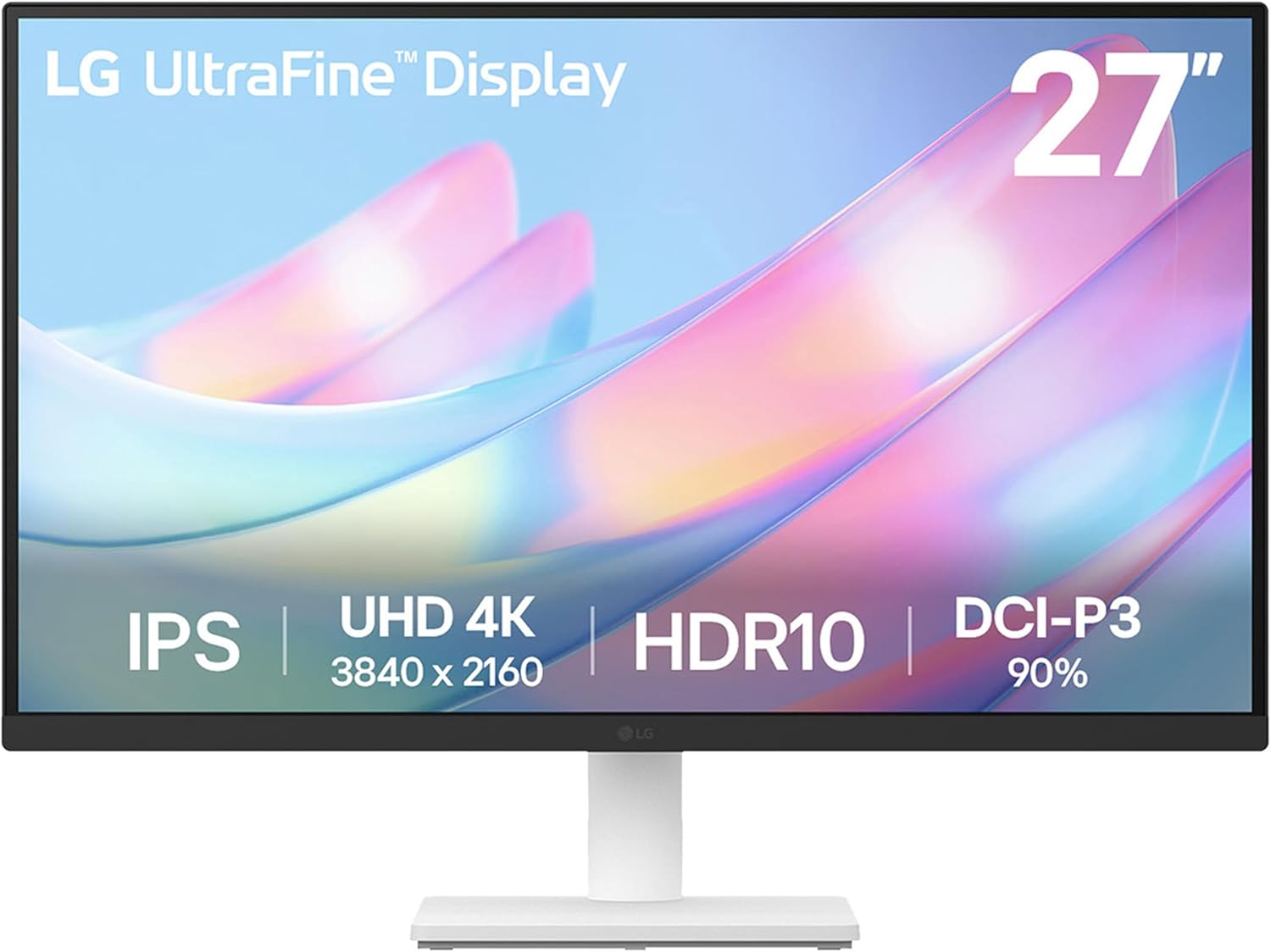
A 27″ 4K monitor from LG’s UltraFine line at $179.99 is genuinely unusual value — monitors in this specification typically start at $250-350. The jump from 1080p to 4K at 27″ is immediately and obviously noticeable in daily use: text is sharper and cleaner, images have more detail, and the overall visual quality is simply different in a way that matters specifically for document-heavy knowledge work.
The 90% DCI-P3 color coverage makes this the strongest pick in the guide for creative work — photo editing, video review, design work — where color accuracy matters beyond what sRGB coverage provides. HDR10 support adds dynamic range for video content, though the practical impact of HDR on a monitor at this brightness level is modest.
Reader Mode adjusts display settings for extended document reading — similar to EasyRead on the Philips pick — which is a thoughtful addition for remote workers spending significant portions of the workday in text-heavy documents or PDFs.
One important note: driving 4K resolution requires more GPU power than 1080p. If you’re connecting a laptop, confirm it supports 4K output over its video ports (most modern laptops with DisplayPort or HDMI 2.0+ do, but older laptops with HDMI 1.4 are limited to 4K at 30Hz rather than 60Hz, which feels noticeably choppy in daily use).
“Pretty good monitor overall, but the white stand, white back, and white cable are puzzling design choices — when I got it out of the box I thought I’d ordered a white monitor by mistake. The black bezel is there, but the white stand and cable visible on the desk just look odd. Not a problem if you put it on a VESA arm. Also worth knowing: your connection method matters. I initially plugged into a USB hub and found it was limiting my refresh rate and preventing HDR. Plugging directly into my machine enabled those features.”
Who it’s for: Anyone doing creative or detail-oriented work where visual clarity genuinely matters — photo editing, design, writing, or anyone who simply wants the sharpest possible display for their daily work and has a modern laptop or desktop that supports 4K output.
Pros:
- 4K at 27″ — sharpest text and image quality in this guide
- 90% DCI-P3 — strongest color accuracy in this guide
- HDR10 support
- LG UltraFine branding — genuine quality positioning
- Reader Mode for document work
- Borderless design
Cons:
- Requires GPU capable of driving 4K — verify laptop compatibility first
- No built-in speakers
- Limited refresh rate compared to gaming-focused picks
- Discounted from $249.99 — verify current price at checkout
| Spec | Detail |
|---|---|
| Price | ~$179.99 |
| Screen size | 27″ |
| Panel type | IPS |
| Resolution | 3840 x 2160 4K UHD |
| Color | 90% DCI-P3, HDR10 |
| Stand | Tilt-adjustable |
How to choose
You just need a solid, reliable monitor for daily work:
→ Philips 24″ 100Hz. $74.99 with a 4-year warranty — the default safe choice.
You work in color-sensitive tasks or game after work:
→ Acer 27″ IPS 120Hz. Better color accuracy and gaming performance than the Philips.
You want to try a curved monitor without paying premium prices:
→ Samsung 27″ Curved. $169.99 is a genuine entry point for curved with a trusted brand.
You want to replace two monitors with one ultrawide:
→ LG 34″ UltraWide. The USB-C single-cable connection makes it especially clean for laptop users.
You want the best resolution and refresh rate combination at a budget price:
→ Sceptre 34″ Curved WQHD. 3440×1440 at 165Hz is difficult to beat at this price.
Visual clarity is your top priority and you do creative or detail-oriented work:
→ LG 27″ 4K UltraFine. The sharpest text and image quality in this guide.
Stuff that will go with your new monitor
- Once you’ve chosen your monitor, a monitor light bar is one of the easiest ways to reduce glare and eye strain during long work sessions.
- Your monitor is the centerpiece of your desk setup — our home office organization guide covers how to organize everything around it.
- Once you have your monitors picked out our dual monitor setup guide covers everything else you need — arm, connectivity, desk mat and cable management.
- Once you have your monitor picked out a monitor arm gets it to the right height — our best monitor arm guide covers seven options from $19.99.
Continue reading
Frequently asked questions
What resolution should I get for working from home?
For most remote workers 1080p (1920×1080) at 24″ is the practical sweet spot — it’s sharp enough for documents and video calls, runs smoothly on any modern computer, and the monitors are significantly less expensive than higher-resolution options. If you’re doing design, photo editing, or want noticeably sharper text, 4K at 27″ is worth the upgrade. Ultrawide options sit in between, trading vertical resolution for horizontal screen width.
Is a bigger monitor always better for productivity?
Not automatically. The key variable is pixel density — a 27″ 1080p monitor has lower pixel density than a 24″ 1080p monitor, meaning text is slightly less sharp. A 27″ 4K monitor has extremely high pixel density and looks genuinely excellent. If you’re going larger, consider whether you’re also stepping up resolution to match, otherwise the larger screen can actually look worse than a smaller one.
Do I need a high refresh rate monitor for office work?
No — 60Hz is technically sufficient for all standard office tasks. 100Hz and 120Hz monitors are worth having because they make scrolling, cursor movement, and general UI interaction feel noticeably smoother, which reduces subtle eye strain over a long day. Every monitor in this guide is 100Hz or higher, so this isn’t a concern with any of these picks.
Can I connect an ultrawide monitor to a MacBook?
Yes — most modern MacBooks support ultrawide resolutions through Thunderbolt/USB-C. The LG 34″ UltraWide specifically supports USB-C which works natively with MacBooks. Check your MacBook’s port specifications and the monitor’s connectivity before purchasing to confirm compatibility.
What’s the difference between IPS and VA panels for office work?
IPS panels have better color accuracy and wider viewing angles — important for color-sensitive work and for monitors that might be viewed from an angle. VA panels produce deeper blacks and better contrast — better for watching video or working in darker rooms. For pure office work the difference is subtle; for creative work IPS is the clearer choice.
All prices approximate and subject to change. Check current pricing at checkout. Last updated June 2026.