Home Office Organization Ideas That Actually Work
Category: How-To Guides | Reading time: 8 min | Last updated: June 2026
Disclosure: This post contains affiliate links. If you buy through our links we may earn a small commission at no extra cost to you.
A disorganized home office doesn’t just look messy — it actively costs you time and focus. Every minute spent hunting for a pen, untangling cables, or shuffling papers to find a document is a small friction that compounds over a full workday. The good news is that home office organization doesn’t require a complete desk overhaul or a significant budget. A few targeted changes to how you manage your desk surface, your cables, and your physical space make a measurable difference in how your workday actually feels.
This guide covers the most impactful organization strategies for remote workers, with specific product recommendations for each area — most of which we’ve reviewed in detail in dedicated posts if you want to go deeper.
Organization is one piece of productive remote work — our complete guide to working from home covers the full picture.
If you want your home office to look as good as it functions our home office decor guide covers plants, wall decor, and desk accessories that make a real difference.
For a product-focused look at organization our office organization guide covers 15 picks across every category from drawer organizers to cable management.
1. Start with your desk surface
The desk surface is the most visible part of your setup and the first place clutter accumulates. The goal isn’t to keep everything off your desk — it’s to give every item that lives on your desk a specific, consistent home so that putting things away becomes automatic rather than something you have to decide to do.
What actually works:
A desk mat as the foundation is one of the most underrated organization tools — it defines your active workspace visually, keeps your keyboard and mouse on a consistent surface, and makes the whole desk look intentional rather than cluttered. It also protects the desk itself from scratches, coffee rings, and the wear that comes from years of daily use.
Beyond the desk mat, a dedicated organizer for pens, small supplies, and frequently used items eliminates the scattered-across-the-desk problem that most home office setups fall into by default. The key is choosing an organizer that matches how you actually work rather than one that looks good in a product photo — a rotating caddy suits someone who grabs different tools constantly, while a drawer-based organizer suits someone who prefers concealed storage.
Recommended reads:
- Best Desk Mats for Home Office 2026 — leather, cork, felt, and wireless charging options from $14
- Best Desk Organizers for Home Office 2026 — seven options from a $10 rotating caddy to a full leather set
- If you’re still choosing your desk our home office desk guide covers eight options from compact budget picks to premium executive desks.
- Reducing physical strain starts with the right peripherals — our ergonomic mouse guide covers seven ergonomic mice from $14.99.
2. Tackle your cables
Cable chaos is the single most visually disruptive element of most home office setups, and it’s also the easiest to fix systematically. Loose cables trailing across a desk, tangling behind monitors, and pooling on the floor make even an otherwise clean setup look cluttered — and they also make it harder to move things around, clean the desk, or add new equipment without creating more mess.
What actually works:
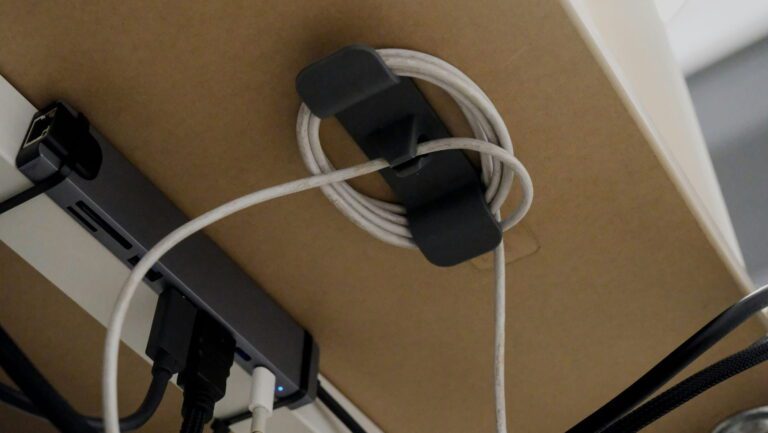
Cable management works in layers. Start at the desk surface — cable clips and velcro ties keep individual cables organized and prevent them from drifting across the desk. Then address the run from desk to floor — a cable sleeve or cable raceway bundles multiple cables into a single clean line. Finally, manage the area under the desk or behind the monitor — a cable management box hides power strips and excess cable length out of sight entirely.
The single most impactful change most people make is adding a cable management tray under the desk. This moves the bulk of cables and power strips off the floor and out of sight, immediately making the desk area feel significantly more organized without requiring any changes to the equipment itself.
Going wireless where possible also helps significantly — a wireless keyboard and mouse eliminate two of the most common desktop cable offenders, and a wireless charging pad or stand removes the phone charging cable from your desk surface entirely.
Recommended reads:
- How to Manage Cables at Your Home Office Desk — Complete Guide 2026 — full step-by-step system for every cable on your desk
- Best Wireless Keyboard and Mouse Combos for Home Office — eliminating two of the most common desk cables
- Belkin vs Anker MagGo — Which Wireless Charger Should You Buy? — removing your phone charging cable from the desk surface
3. Organize your paperwork
Paper is the other major source of desk clutter for remote workers, and it’s the one most people put off dealing with because it feels like it requires a bigger system than it actually does. The reality is that most paper clutter comes from one problem: no dedicated inbox.
What actually works:
A tiered letter tray with at least three levels handles the full paper lifecycle — incoming items that need action, active items you’re currently working with, and items waiting to be filed or discarded. The key habit is processing your inbox at the end of each day rather than letting it accumulate across the week.
For documents you need to keep but don’t need on your desk, a small filing cabinet or accordion folder under the desk or in a drawer keeps them accessible without taking up surface space. The goal is a desk surface with only active items on it — everything waiting, filed, or finished should live somewhere else.
For remote workers who deal primarily with digital documents, the physical paper problem is often smaller than the digital one — a cluttered desktop, a disorganized downloads folder, and a chaotic email inbox cause the same focus disruption as physical clutter, just less visibly.
4. Add a monitor light bar
Lighting is an underrated part of home office organization — specifically, reducing the visual clutter that comes from glare, reflections, and inconsistent light sources competing with your screen. A monitor light bar sits on top of your monitor and illuminates your desk surface without creating glare on the screen itself, which both reduces eye strain and makes your whole setup feel more intentional.
A properly lit desk also makes a significant difference on video calls — consistent, forward-facing light eliminates the washed-out or shadowy appearance that comes from relying on overhead room lighting or a window behind or beside you.
Recommended read:
- Best Monitor Light Bars for Home Office 2026 — six options from $40 to $199
- A desk lamp is one of the most overlooked organization upgrades — our desk lamp guide covers six options including lamps with built-in charging and power strips.
5. Upgrade your seating comfort
Organization isn’t only about what’s on your desk — it includes how you physically experience your workspace. An uncomfortable chair is one of the most common sources of distraction during a remote workday, and it’s often something people tolerate for months or years before addressing it.
A seat cushion or lumbar support pillow is the cheapest, fastest fix for an uncomfortable chair — often more effective than replacing the chair entirely, and significantly cheaper. The difference between a well-supported sitting position and a poorly supported one compounds over an 8-hour workday in ways that directly affect focus and energy.
Recommended read:
- Best Seat Cushions and Lumbar Support for Office Chairs 2026 — five options from $22 to $59
6. Manage your monitor setup
Your monitor height, position, and quantity affect both physical comfort and how much visual workspace you have to work with. A monitor that’s too low causes neck strain. A monitor positioned to the side causes you to hold your head at an angle for hours. A single monitor that’s too small forces constant window-switching that breaks concentration.
What actually works:
If you’re using a laptop as your primary computer, an external monitor at eye level paired with a laptop stand is one of the most impactful ergonomic and productivity upgrades you can make. It gives you more screen real estate, puts your primary screen at the right height, and lets you use a full-size keyboard and mouse without being hunched over a laptop keyboard.
If you’re already using a desktop monitor and want more space, a second monitor on a well-positioned arm can effectively double your visual workspace — which for most remote workers translates directly into fewer alt-tabs and a more organized digital workspace to match the physical one.
Recommended reads:
- Best Budget Monitors for Work From Home 2026 — standard, curved, ultrawide and 4K options from $74
- How to Set Up Dual Monitors for Home Office (Step-by-Step) — positioning, settings, and cable management for two screens
- A dual monitor setup is one of the biggest desk organization upgrades available — our complete dual monitor setup guide covers everything you need from $338.
7. Build a consistent end-of-day reset habit
The most effective home office organization system is one you maintain, not one you set up once and let decay. The single most impactful habit for maintaining an organized desk is a brief end-of-day reset — 2-3 minutes at the end of each workday where you clear the desk surface back to its baseline state.
What this looks like in practice:
Put pens back in the organizer. File or action any papers in your inbox. Coil any cables that got pulled out. Clear any coffee cups or glasses. Close unnecessary browser tabs and organize your digital desktop. Put your phone on the charging stand rather than leaving it wherever it ended up.
This habit works because it means you start each workday with a clean slate rather than inheriting yesterday’s clutter, which has a measurable impact on how focused the first hour of the day feels. The desk is already organized — you’re just maintaining it rather than rebuilding it each morning.
Quick wins — the highest-impact changes first
If you’re looking to make the biggest improvement with the least effort, here’s the priority order based on what actually moves the needle for most remote workers:
1. Cable management tray under the desk — moves the bulk of clutter out of sight immediately, biggest visual impact per dollar spent.
2. Desk organizer for pens and small supplies — eliminates the scattered-across-the-desk problem that most setups default to.
3. Desk mat — defines the active workspace visually and makes the whole desk look intentional.
4. Tiered paper tray — gives paperwork a home so it stops accumulating wherever there’s space.
5. Wireless keyboard and mouse — removes two cables from the desk surface permanently.
6. Monitor light bar — reduces glare and makes the whole setup feel more polished.
7. End-of-day reset habit — maintains the system you build without requiring ongoing effort.
None of these require a significant investment or a complete desk overhaul. Most can be implemented in an afternoon with products that cost between $10 and $50. The compounding effect of several small organizational improvements is typically much larger than any single expensive upgrade.
Continue reading
Frequently asked questions
How do I start organizing a messy home office?
Start with one category rather than trying to fix everything at once. Cable management tends to have the highest visual impact for the least effort — a cable management tray and a few velcro ties can transform how a desk looks in under an hour. Once cables are under control, move to desk surface organization, then paperwork.
What are the most important home office organization products?
The products that make the biggest practical difference for most remote workers are a desk organizer for small supplies, a cable management solution (tray, clips, or sleeve), a desk mat to define the workspace, and a paper tray for incoming documents. These four categories address the most common sources of desk clutter without requiring a large investment.
How do I keep my home office organized long term?
The end-of-day reset habit is the single most effective long-term maintenance strategy — 2-3 minutes at the end of each workday returning everything to its designated place prevents clutter from accumulating. Beyond that, having a specific home for every item that lives on your desk makes putting things away automatic rather than a decision you have to make each time.
How can I organize a small home office or limited desk space?
Vertical space is the most underutilized resource in small desk setups. A monitor arm frees up the footprint your monitor stand was occupying. A tiered letter tray stacks paperwork vertically instead of spreading it horizontally. A wall-mounted cable organizer keeps cables off the desk surface entirely. In a small space, the goal is to move as much as possible off the desk surface and onto vertical surfaces or under the desk.
Does a tidy desk actually improve productivity?
The research suggests yes, though the effect size varies by person. A 2011 study from Princeton University Neuroscience Institute found that physical clutter in the visual field competes for attention and reduces the brain’s ability to focus and process information. For remote workers specifically, where the home office is both a work environment and a personal space, visual organization also helps maintain the psychological boundary between work mode and home mode.
Last updated June 2026.