How to Set Up a Home Office: What to Buy First
Category: How-To Guides | Reading time: 14 min | Last updated: October 2026
Disclosure: This post contains affiliate links. If you buy through our links we may earn a small commission at no extra cost to you.
Most home office guides assume you have a spare room, a generous budget, and a weekend to spare. This one does not.
This is a practical guide for remote workers setting up in the real world, whether that is a corner of your bedroom, a small apartment, a shared space, or a dedicated room you are finally getting around to organizing properly. The principles are the same either way.
And the order you buy in matters more than what you buy. That is the part most guides skip, so it goes first.
Buy in this order
If you are building from scratch, spend your money in this sequence:
| Order | What | Why it ranks here |
|---|---|---|
| 1 | Chair | You feel a bad chair in your body every hour you work |
| 2 | Desk | Surface area, and standing capability if the budget allows |
| 3 | Monitor | A screen at eye level ends the neck angle problem immediately |
| 4 | Audio | How you sound on calls is professional presentation |
| 5 | Peripherals | Wireless keyboard and mouse, cable management |
| 6 | Camera | A visible improvement, but audio matters more |
| 7 | Everything else | Lighting, accessories, productivity tools |
Most people buy in exactly the wrong order. They get the good webcam before fixing the cheap chair they have been sitting on for two years. The chair affects your body and your focus every single hour you work. The webcam affects how you look for the hour a day you spend on calls.
Fix the fundamentals first. Everything below follows that sequence.
Jump to a step
1. Claim your space
The most important decision in a home office setup is not what chair you buy. It is where you work.
Your brain associates locations with behaviours. The couch is for relaxing. The kitchen table is for eating. A dedicated workspace, even a small one, signals that it is time to work. Research on psychological detachment consistently finds that people with a workspace separate from their relaxation spaces report better focus during work hours and better recovery outside them.
You do not need a separate room. You need a consistent spot.
In a small apartment or studio. A corner with the desk facing a wall creates a defined workspace without a separate room. The direction you face matters. Facing the wall while working and turning away when you are done builds a physical boundary between work mode and home mode.
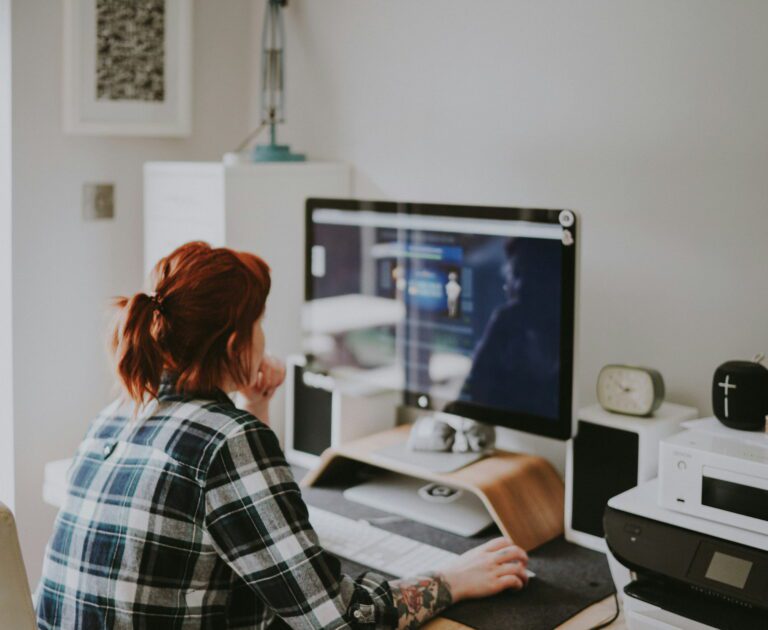
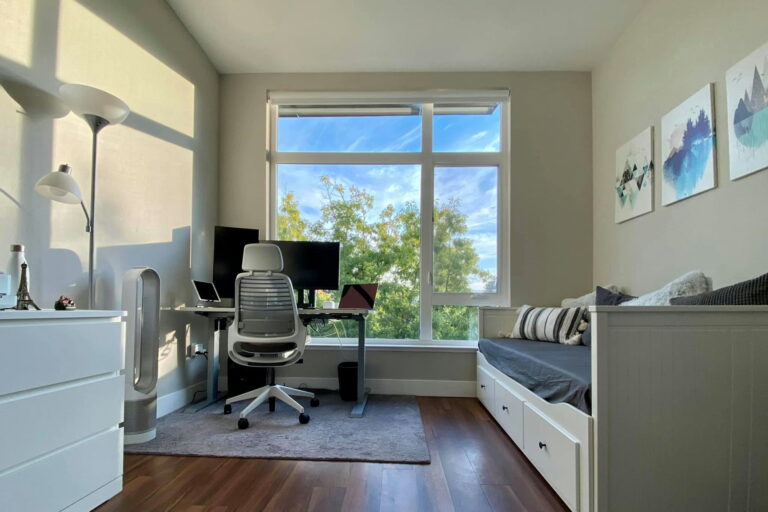
In a bedroom, which is where my own setup lives. Position the desk away from the bed if you can. Working from bed is the fastest way to ruin both your sleep and your focus. If a small bedroom desk is the only option, a room divider or even a curtain between bed and desk creates the separation.
In a shared space, noise cancelling headphones stop being optional. Agree a signal with whoever you share with: headphones on means do not interrupt.
The non-negotiables for any space:
- Enough surface for a monitor, keyboard and mouse without feeling cramped, which means 48 inches wide at minimum
- A power outlet within reach
- Natural light if possible, facing a window rather than sitting with one behind you
- Enough vertical clearance to put a monitor at eye level
Once the space is settled, everything else follows. For the wider picture beyond the physical setup, our complete guide to working from home covers routines, distractions and sustainable habits.
2. Get the desk right
Your desk is the foundation everything else sits on. Getting it wrong makes every later purchase less effective.
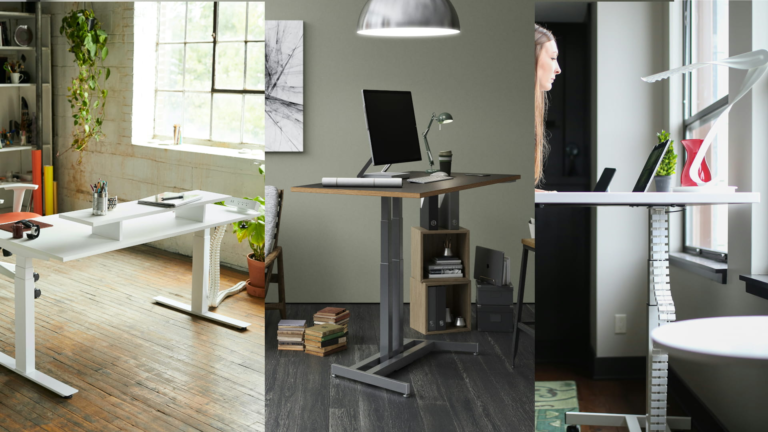
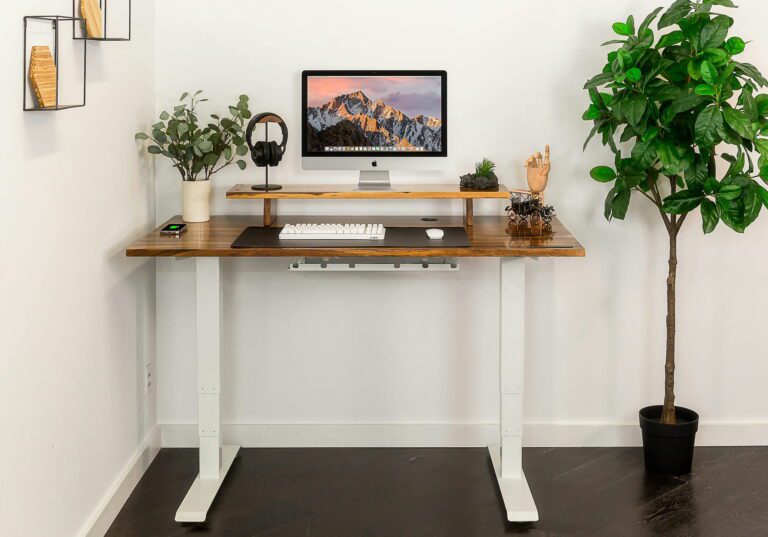
Size matters more than looks. A beautiful small desk that leaves you cramped is worse than a plain large one with room to spread out. For a single monitor, 48 inches wide and 24 deep is the floor. For dual monitors, 55 inches or more earns its footprint.

The three-stage legs are the spec worth paying for. Two-stage frames wobble noticeably at standing height, which is exactly when you need them steady. The dual motor is the other one, since single-motor desks struggle once you load a monitor, a dock and a laptop onto them.
“Assembly was surprisingly easy, and the instructions were clear and easy to follow. I was able to put the whole thing together by myself without any issues. The desk looks really nice in person and has a clean, modern design. It also feels sturdy and well-made. The height adjustment is smooth and quiet, and it’s really convenient to switch between sitting and standing depending on what I’m doing. There’s plenty of space for my monitor, laptop, and other study materials without feeling too crowded.”
If a standing desk is out of budget, a plain large surface beats a small adjustable one. Our budget standing desk guide covers the cheaper frames worth buying, and our home office desk guide covers fixed desks including executive options.
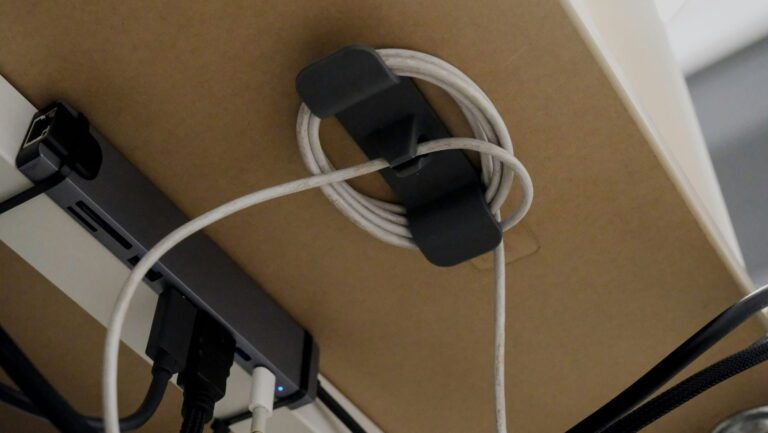
Whatever you choose, deal with the cables before you get used to them. Our cable management guide covers the full setup, and if your desk moves, standing desks need a different approach entirely.
3. Invest in a chair
You will spend more hours in your chair than in any other piece of furniture you own. This is not the place to cut corners, and it is why the chair sits first in the order above.
The problem with cheap chairs is not that they are uncomfortable on day one. It is that they do cumulative damage to your posture and lower back across months of six to eight hour days. By the time you notice, the damage is already done.

What to look for in any chair at this level: adjustable lumbar support in both height and depth, seat depth adjustment, 4D armrests, and a mesh back if you run warm. Those are not luxury features. They are the adjustment range that lets a chair fit your body instead of forcing your body to fit the chair.
Worth reading an honest account before you buy, because this chair has real limits.
“This chair seems worth the price in terms of number of features. The cushion is soft enough and overall it’s reasonably comfortable. The various points of adjustment don’t adjust quite as far as I had pictured. The lumbar support feels a little flimsy and doesn’t have any padding. The armrests don’t lock in position which is annoying. I can certainly imagine a more comfortable chair, but it seems like you have to pay a LOT more before you start to see a meaningful difference. Product came with a minor defect, I reached out to customer service and they responded immediately and put in the order for a replacement part within the day.”
That is the honest picture of this price bracket. The adjustment range is real but not deep, the lumbar pad is thin, and the armrests do not lock. The reviewer’s own conclusion is the useful part: you have to spend a great deal more before the difference becomes meaningful.
If you are currently on a dining chair or a cheap task chair and your back hurts by 2pm, a proper ergonomic chair will change your day more than anything else on this list. Our ergonomic chair guide ranks six options, and our seat cushion guide covers the cheaper fix if a new chair is not happening yet.
4. Fix your monitor height
Your laptop screen is not your friend for full-time remote work. The resolution is usually fine. The size, the height and the fixed position are the problems.
Working on a laptop sitting flat on a desk means your neck is angled down for hours. Across a full week that is real cumulative strain. An external monitor at eye level removes it immediately.

IPS is the spec that matters for desk work, because the colours stay consistent when you are not sitting perfectly square to the screen. VESA mounting is the other one, since it is what lets you put the panel on an arm later.
“My old 23 inch HP monitor died. I wanted to get a bigger one but it won’t fit on my desk that has a shelving unit over it. This was a perfect replacement and was so easy to connect, but I had to buy a longer cable to hook it up.”
Note the cable point, because it catches people out. Monitors ship with a short cable or sometimes none at all. Check what is in the box before you order.
Getting the height right matters as much as the monitor. The top of the screen should sit at eye level. A monitor arm frees up the desk space a stand occupies and lets you position it exactly, and our Ergotron LX vs LX Pro comparison explains why the weight rating matters more than the name. If you would rather keep the factory stand, our monitor stand guide covers risers.
Running two screens? Our dual monitor setup guide walks through configuration on Windows and Mac, and our ultrawide vs dual monitors comparison covers whether one wide screen suits you better.
5. Sort your peripherals
A wireless keyboard and mouse is one of the highest return upgrades for how a desk feels day to day. No cables means a cleaner surface, easier height changes on a standing desk, and the ability to move things without untangling anything.

Three device pairing is the feature people end up valuing most. One keyboard and mouse across a work laptop, a personal machine and a tablet, switched with a button.
“I was hesitant on buying this because of the price. I have issues with my wrists so I caved and bought it. BEST DECISION. This is literally the best wireless mouse and keyboard combo I own, and I own several. I love the quiet click of the mouse, the shape is perfect within my hand and eases the pain in my wrist. The pad that comes with it is a nice bonus. I’ve owned the plastic, the foam, the gel wrist rest and they are all bulky and uncomfortable to use. This one is nice and easy.”
If wrist pain is the reason you are shopping, a vertical mouse is worth considering instead. Our Logitech Lift vs MX Vertical comparison covers which size suits which hand, and our wireless keyboard and mouse guide covers cheaper options.
If your laptop has one port and you now need four, a dock solves it with a single cable. Our Thunderbolt 4 vs 5 guide covers which generation you actually need, and our USB hub guide covers the simpler options.
Most people never think about power until an outage costs them an afternoon, and a battery backup is the cheap insurance against that.
6. Video call presence
Remote work means video calls, and how you look and sound on them is part of your professional presentation in a way it never was in an office.
Lighting matters more than the camera. A good webcam in a dark room looks worse than a basic one with light on your face. Sit facing a window, or add a small key light for results that do not depend on the weather.

Still the right first webcam for almost everyone. Not the sharpest option available, but it works with everything immediately, and the light correction is what makes it hold up in an ordinary room.
“Really happy with this webcam. The video quality is clear, it’s easy to set up, and the compact size is perfect for my desk. It feels stable and gives a much more professional look to my streams and videos. Definitely a great upgrade!”
One thing worth knowing: this model ships without a physical privacy shutter. If that matters to you, check the variant before ordering.
Put it at eye level. A camera below your face points up at you, and nobody looks good from there. Our video call setup guide covers camera position, lighting and audio in order of impact, and our lighting guide covers the room itself.
7. Manage noise
Most home office guides skip this one and they should not.
Research from the University of California, Irvine found it takes an average of 23 minutes to fully regain focus after an interruption. At home the interruptions are constant: delivery drivers, neighbours, the dog, traffic. Each one costs you the moment it happens plus the next 23 minutes.

The use case here is focused work, not calls. For calls a headset with a boom mic usually beats over-ear headphones, because the mic sits closer to your mouth.
“Among the many brands of noise cancelling headphones the Sony WH-1000XM5 is among the best. It sports excellent versatility with noise cancelling mode, aware mode, voice pausing, calls and bluetooth capability. These headphones charge quickly. However these headphones unlike many brands power off after prolonged periods of no use to conserve battery. Setup is simple.”
Deciding between Sony generations? Our XM5 vs XM6 comparison covers what actually changed. If Bose is on your list instead, our QuietComfort vs Ultra guide covers all four of their current models, and our noise cancelling headphones guide covers the full range including cheaper picks and boom mic headsets.
Budget for audio before you budget for a second monitor, because the headset you take calls on shapes how competent you sound to everyone you work with.
8. The productivity layer
Once the physical setup is sorted, the next layer is the small things that change how you actually work.
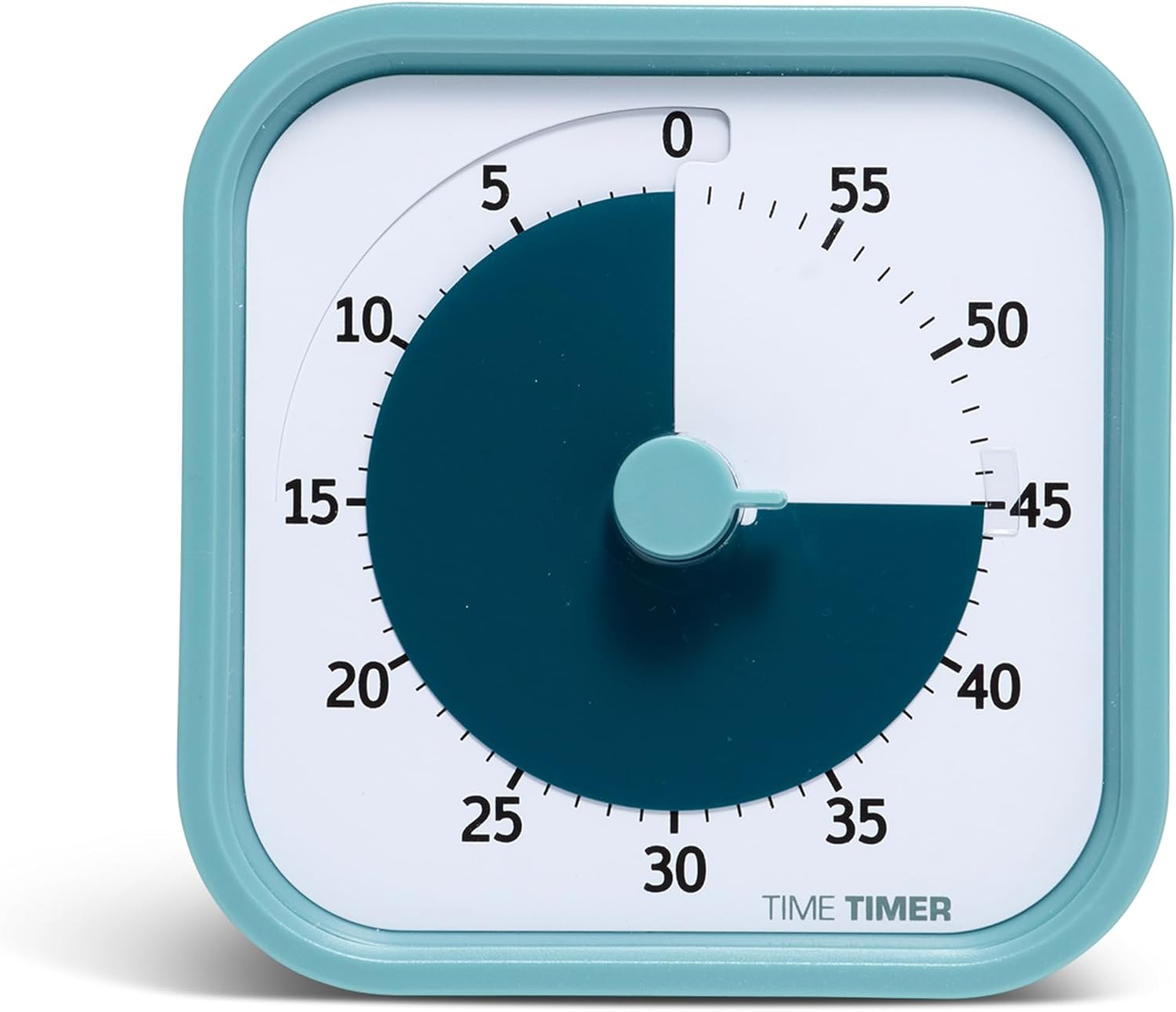
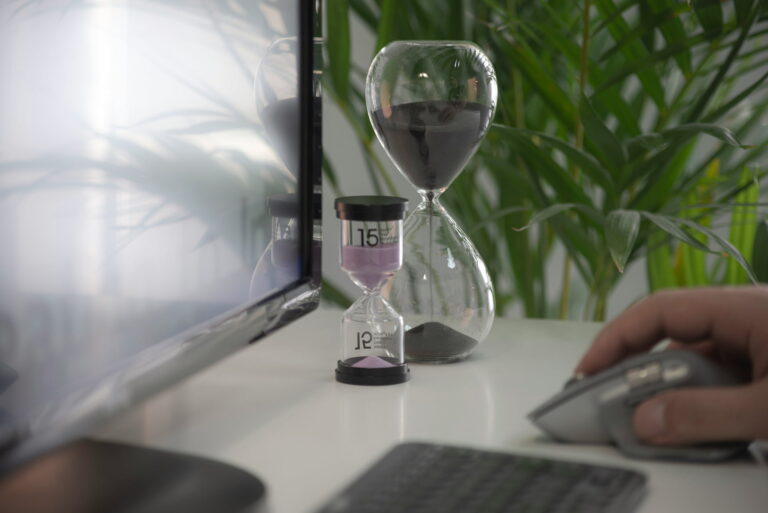
The point of a physical timer is that it keeps your phone out of the work session. Using your phone as a Pomodoro timer means picking up your phone every 25 minutes, which defeats the exercise.
“We have had this timer for almost 2yrs of rough daily use. This thing is sturdy! It still works perfectly and none of the plastic body parts have broken. We use it outside, in the kitchen, all over. We love that it is so easy to use, and very visual! Sometimes I wish it had a volume switch. For most functions it is perfect volume, but sometimes it can be a bit too loud.”
Two more worth adding. A whiteboard for visual task planning, because seeing your priorities on a physical board keeps them present in a way a to-do app three clicks away does not. And a plant, which sounds soft until you have worked in a room without one. A pothos needs almost no maintenance and makes the space feel less clinical.
Our physical productivity items list covers ten desk items with real owner reviews, and our desk organizer guide covers keeping the surface clear.
9. Focus systems
A good physical setup helps but it does not make you productive on its own. The habits around the space matter as much as the space.
Phone in another room during deep work. A University of Texas study found that the mere presence of a smartphone on the desk reduces available cognitive capacity, even face down and silent. Not in a drawer. Another room.
Scheduled communication windows. Checking email and Slack at set times rather than continuously. The American Psychological Association has found task switching can cut productivity by up to 40 percent.
A shutdown ritual. A consistent end-of-work sequence that tells your brain the day is over. Without a commute you have to build that transition deliberately, or work bleeds into the evening.
Our focus guide for remote workers covers ten evidence-backed strategies with the research behind each.
Three setups to copy
Same order of priorities, three levels of commitment. Check current pricing on each, since it moves constantly.
Starting from scratch
The minimum that will not hurt you. A basic large desk surface, the best ergonomic chair you can manage, and one external monitor at eye level. Skip everything else until those three are sorted. A seat cushion on a chair you already own buys you time if a new chair is not happening yet.
The full setup
What most full-time remote workers should build toward. A standing desk, a proper ergonomic chair, a 27 inch IPS monitor on an arm, a webcam at eye level, and a wireless keyboard and mouse. This is the point where the setup stops getting in your way.
No compromises
Everything above, plus the MX Keys S combo, noise cancelling headphones, a dedicated key light, and a dock so one cable handles everything. Our $500 home office setup covers the value version of this, and our Black Friday guide tracks when these discount hardest.
Frequently asked questions
What should I buy first for a home office?
The chair. You sit in it every hour you work and a bad one does cumulative damage to your back and posture. Desk second, monitor third, audio fourth. Most people reverse this and buy the webcam first.
Can I set up a home office in a small space?
Yes. A 48 by 24 inch desk footprint is enough. A monitor arm removes the space a stand takes up, and a compact keyboard and mouse keeps the surface clear. The bigger constraint is usually finding a spot you can leave set up rather than one you have to pack away.
Do I need a standing desk?
Not immediately. On a limited budget a good chair and correct monitor height will do more for you than a standing desk paired with a bad chair. Standing desks pay off once the fundamentals are covered.
What is the most important thing in a home office?
The chair, then monitor height. Those two affect your body and your attention across every hour you work. Everything else is a quality of life improvement.
How do I look professional on video calls?
Three things in order of impact: lighting, which means facing a window or adding a key light, then the camera at eye level rather than looking up from a laptop, then a clean or blurred background. Our video call setup guide covers each in detail.
How long does it take to set up a home office?
An afternoon for the physical setup once the furniture arrives. The part that takes longer is getting the height right, and it is worth revisiting after a week of actually working in it. Our standing desk height calculator gives you sitting and standing numbers to start from.
Sources and references
- Eye strain and workstation lighting, UCLA Ergonomics
- Workstation height and footrests, UCLA Ergonomics
- Complete Guide to Working From Home, Home Office Nomad
Continue reading
Prices change often. Check current pricing at checkout. Last updated October 2026.