Ultrawide vs Dual Monitors: Which Is Better for Your Home Office?
Category: Desk Setups | Reading time: 15 min | Last updated: September 2026
Disclosure: This post contains affiliate links. If you buy through our links we may earn a small commission at no extra cost to you.
The short answer: Choose dual monitors if you keep one task fixed while the other changes, if you share your screen on calls, or if you want to start with one display and add the second later. Choose an ultrawide if you spread one big task across the whole screen, like spreadsheets, timelines, or code beside documentation, and you want fewer cables on the desk.
The ultrawide vs dual monitors debate usually gets framed as more screen versus less. That isn’t the real question. Both give you roughly the same working area. The difference is the bezel down the middle, and whether that line helps you or gets in your way.
Use the TOC to go to my picks!
In this comparison
Key differences
The bezel. On a dual setup, the gap between screens is a hard border. Slack lives on the right, your work lives on the left, and neither runs into the other. On an ultrawide, nothing interrupts the picture, so one window can stretch as wide as you want. Whether that border is a feature or an annoyance is the whole decision.
Window management. Dual monitors split themselves. An ultrawide needs snapping zones or software to stop every window from opening full width, which is uncomfortable to read across 34 inches. Most ultrawides ship with a utility for this, and Windows and macOS both have snapping built in.
Screen sharing. Sharing a full ultrawide desktop makes your text tiny for everyone else on the call. Sharing one monitor out of two is clean and needs no thought. This matters more than most comparisons admit.
Cables and ports. An ultrawide is one power cable and one video cable, and on models with USB-C it can be a single cable that also charges your laptop. Two monitors mean two of everything, plus a laptop with two working video outputs.
Buying in stages. Two monitors can be bought a year apart, and you can start with the one you already own. An ultrawide is one purchase.
Vertical space. Two monitors can be rotated, so one sits in portrait for documents, code, or long pages. An ultrawide is always landscape.
Which is better for productivity
You’ll see confident claims that one setup makes you some specific percentage more productive. Be careful with those numbers. The studies behind them are usually funded by display manufacturers, run on small groups doing artificial tasks, and repeated for years without anyone rechecking them. They aren’t useless, but they don’t tell you what to buy.
What actually predicts the right answer is how your windows behave during a normal day.
Dual monitors suit a stable primary task beside something persistent. If your left screen holds the thing you’re working on and your right screen holds email, chat, a reference document, or a dashboard that you glance at but rarely touch, two screens are doing real work for you. The bezel keeps the distraction physically separate, and switching context means turning your head rather than hunting for a window.
An ultrawide suits one task that wants room to breathe. A wide spreadsheet where you need columns A through Z visible at once. A video or audio timeline. Three related panes that you move between constantly. In those cases a bezel in the middle is genuinely in the way.
A quick test you can run today, before spending anything: spend a morning with your current monitor split into snapping zones, with your main task taking half the width and two supporting windows beside it. Then spend an afternoon with your laptop screen dedicated to reference material and your monitor holding the main task. Notice which one you stop fighting. If you keep resizing panes, you want the continuous canvas. If the separation helps you ignore notifications, you already have your answer.
Which is better for coding
Developers land on both, and the split usually comes down to what sits beside the editor.
Dual monitors win if you run a terminal, logs, or a browser preview that needs to stay put while you work. Rotating the second monitor into portrait is the other big advantage, since a vertical screen shows far more of a file or a log at once.
An ultrawide wins if you work in one editor with panes inside it, comparing files side by side, or keeping documentation open beside the code without a border cutting through. A 3440 x 1440 ultrawide fits three comfortable code columns at a readable size.
Resolution matters more here than aspect ratio. Text quality on a 34-inch screen at 2560 x 1080 is noticeably softer than at 3440 x 1440, and if you read code all day, that difference shows up in your eyes by mid-afternoon. If coding is the main use, go WQHD or skip the ultrawide.
Which is better for video calls
This is the part most comparisons skip, and for a home office it might be the deciding factor.
Dual monitors are better for sharing. Zoom, Teams, and Meet all let you share one display. With two monitors you put the deck or document on one screen and keep your notes, chat, and participant list on the other. Nobody sees your messages, and what they do see fills their screen properly.
Ultrawides make sharing awkward. Share the whole desktop and your content arrives letterboxed, with everyone squinting at small text. Share a single window instead and it usually works, but menus, pop-ups, and dialogs can open outside the captured area, which is where the “can you see my screen?” moment comes from.
There’s a workaround on ultrawides. Most have picture-by-picture or a split utility, and you can share a window rather than the screen. It’s fine once you’ve set it up, but it’s one more thing to get right before a meeting.
If you present or demo regularly, that alone is a reason to lean dual. For everything else in your call setup, our video call setup guide covers camera height, lighting, and audio.
Desk space, cables, and mounting
Depth matters more than width. A 34-inch ultrawide is about as wide as two 24-inch monitors, but the curve on curved models needs you to sit far enough back to benefit. On a shallow desk you end up too close to the edges. Measure from the front edge of your desk to the wall before buying a 34 or 49-inch display.
Two monitors need alignment. Matching the height and angle of two screens takes a few minutes with stands and is much easier with an arm. A single ultrawide is level by definition.
Check the mount pattern before buying an arm. VESA sizes vary, and some ultrawides use a smaller pattern than you’d expect for their size. Our best monitor arm guide covers single and dual arms, and our best monitor stand guide covers risers if you’d rather keep the factory stands.
Whichever you choose, height is what saves your neck. The top of the screen should sit at or just below eye level so your head stays balanced over your shoulders. OSHA’s computer workstations guide covers the full seated posture. On a dual setup, both screens go at the same height, with the one you use most directly in front of you rather than off to the side.
Best ultrawide picks
LG 34U530A-W: Best ultrawide for laptops and calls

This is the ultrawide to get if you dock a laptop every morning. The USB-C port carries video and data down one cable, so opening the lid and plugging in one connector puts you to work. The stand adjusts for height, tilt, and swivel with about six inches of height travel, which is more than most ultrawides at this level offer and the reason your neck will thank you.
It’s also the friendliest of the three for calls. Built-in speakers mean you aren’t reliant on your laptop for audio, and LG’s Switch app splits the screen into up to six sections, which makes it far easier to keep a meeting window and your notes in fixed places.
The trade-off is sharpness. At 2560 x 1080 across 34 inches, text is noticeably softer than on a WQHD ultrawide. For email, browsers, documents, and calls it’s perfectly readable. For code or detailed design work all day, look at the Sceptre below instead.
“First, the screen is huge! It was easy to put together. I have my Apple TV, Switch 2, and PS5 connected to it. I also use my laptop. I connected an HDMI switch to it and it has no problem balancing it all. Definitely a great value for what I paid. No it’s not 4K but it still has that high LG quality. The screen adjusts up and down easily.”
Who it’s for: Laptop users who want a single-cable dock, and anyone who spends more time in meetings and documents than in dense spreadsheets or code.
Pros:
- USB-C carries display and data over one cable
- Height, tilt, and swivel adjustment
- Built-in speakers for calls
- IPS panel with 99% sRGB and DisplayHDR 400
- Switch app splits the screen into up to six sections
Cons:
- 2560 x 1080 is soft for text-heavy work at this size
- Flat panel, no curve
- 107 reviews, the fewest of the three ultrawides here
| Spec | Detail |
|---|---|
| Size and ratio | 34 inches, 21:9 |
| Resolution | 2560 x 1080 |
| Panel | IPS, 100Hz, 5ms |
| Brightness | 400 nits, DisplayHDR 400 |
| Ports | USB-C, DisplayPort, HDMI |
| Stand | Height, tilt, swivel |
Sceptre C345B-QUT168: Best ultrawide for screen space

The resolution is what earns this one its place. At 3440 x 1440 you get five million pixels instead of the LG’s 2.8 million, and that shows up immediately in how crisp text looks. This is the ultrawide for spreadsheets, code, and anything you read for hours. The R1500 curve also brings the far edges of a 34-inch screen back toward you, which helps at normal desk distance.
Two things to know before you order. To run it at 165Hz you need DisplayPort, since the HDMI ports top out at 100Hz, and two DisplayPort cables come in the box. And the VESA pattern is 75x75mm rather than the 100x100mm most arms ship with, so check your arm or budget for an adapter plate.
The stand tilts only, with no height adjustment, which is the main compromise against the LG. If eye level matters to you, plan on an arm or a riser.
“I have been buying this monitor for years now. The resolution is amazing. I use this for my office, and I am truly amazed at what it’s capable of. The picture quality and the fact that you can adjust the brightness and blue light is a godsend. I would 100% recommend this monitor.”
Who it’s for: Anyone doing spreadsheet, coding, or editing work who wants the sharpest text of the three ultrawides here.
Pros:
- 3440 x 1440 keeps text crisp across 34 inches
- R1500 curve suits normal desk distance
- Two DisplayPort and two HDMI inputs
- Built-in speakers and an adjustable blue light filter
- 3,038 reviews, the most validated ultrawide here
Cons:
- Tilt only, no height adjustment
- 75x75mm VESA pattern, not the more common 100x100mm
- 165Hz requires DisplayPort, HDMI caps at 100Hz
- No USB-C
| Spec | Detail |
|---|---|
| Size and ratio | 34 inches, 21:9 |
| Resolution | 3440 x 1440 |
| Panel | Curved VA, R1500, 1ms MPRT |
| Refresh | Up to 165Hz over DisplayPort |
| Ports | 2x DisplayPort 1.4, 2x HDMI 2.0 |
| VESA | 75x75mm |
Deco Gear 49-inch: Best true dual monitor replacement

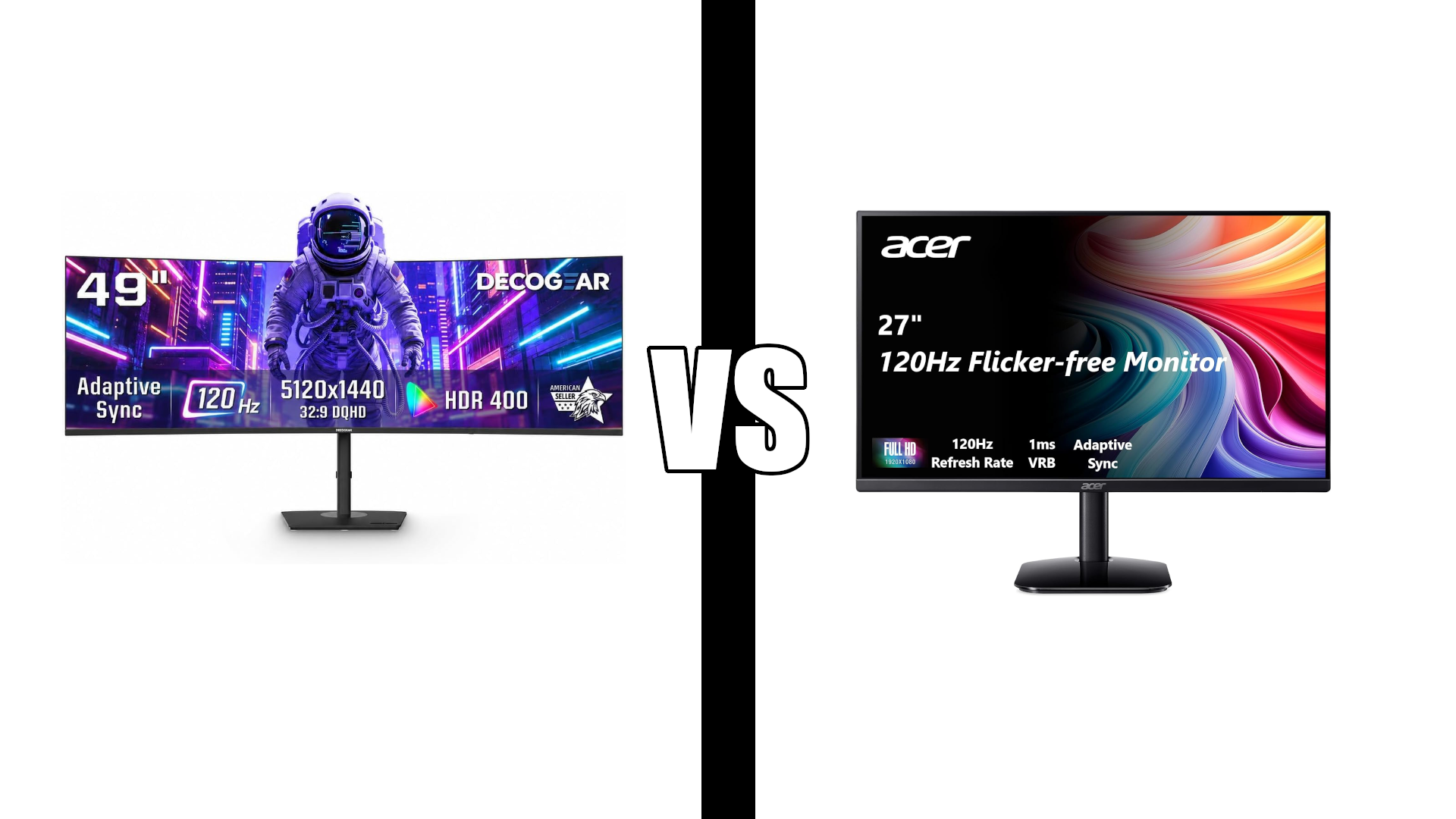
A 49-inch 32:9 screen at 5120 x 1440 is literally two 27-inch QHD monitors side by side with the bezel removed, which makes this the closest thing to having both answers at once. Picture-by-picture splits it into two independent halves when you want that hard border back, and the built-in KVM lets one keyboard and mouse drive two computers, which is the feature to look for if you juggle a work laptop and a personal machine.
USB-C with 65W power delivery handles video, data, and laptop charging on one cable. The stand adjusts for height, tilt, and swivel, which is essential on a screen this size.
The honest caveats are physical. It’s over four feet wide and needs a deep desk to sit back far enough, and it’s heavy enough that a standard monitor arm may not be rated for it. There’s no built-in audio, so plan on headphones or speakers. This is also the only pick here that genuinely replaces a dual setup rather than competing with one.
“The display is sharp, the colors look great, and the 32:9 aspect ratio makes multitasking much more efficient. It’s perfect for having multiple windows open side by side without needing a second monitor. Setup was straightforward, and the curved screen makes it comfortable to use for long periods. Whether you’re working with spreadsheets, editing content, programming, or gaming, this monitor provides plenty of screen space.”
Who it’s for: Anyone who wants the screen area of two 27-inch monitors with no bezel, and anyone running two computers from one keyboard and mouse.
Pros:
- 5120 x 1440 equals two 27-inch QHD screens
- Built-in KVM switch for two computers
- Picture-by-picture restores a hard split when you want one
- USB-C with 65W laptop charging
- Height, tilt, and swivel stand
Cons:
- Needs a wide and deep desk
- No built-in speakers
- Heavy, so check any arm’s weight rating
- 787 reviews, a smaller track record
| Spec | Detail |
|---|---|
| Size and ratio | 49 inches, 32:9 |
| Resolution | 5120 x 1440 |
| Panel | Curved VA, R1500, 120Hz |
| Color | HDR400, 100% sRGB |
| Ports | USB-C 65W PD, 2x HDMI 2.0, DisplayPort 1.4, USB-A |
| Extras | KVM switch, PIP and PBP |
Best monitors for a dual setup
For two screens, the thing to optimize is thin bezels, since two bezels meet in the middle and you want that seam as narrow as possible. Buy two of the same model if you can, because matching panels means matching color and height.
Acer KB272 G0bi: Best dual monitor overall

This is the one to buy two of. The IPS panel gives you accurate color and wide viewing angles, which matters more on a dual setup than a single one, because you’re always looking at the second screen at an angle. A TN or low-end VA panel washes out as soon as it’s off to the side.
The three-sided thin bezel keeps the seam between the two screens narrow, 99% sRGB coverage means colors match across both, and the matte finish cuts glare from a window behind you. A three-year parts and labor warranty is unusually good at this level, and the HDMI cable in the box saves you a purchase on each screen.
The 120Hz refresh rate is marketed for gaming but the real benefit at a desk is smoother scrolling through long documents and web pages. Note there’s HDMI and VGA only, so if your laptop has one HDMI port you’ll need a dock or a hub for the second screen. Our best USB hubs guide and best docking station guide cover that.
“The high resolution gives me more real estate on my desktop, which is what I need for my work computer. Text and graphics are both sharp and crisp. There are no delays or flickering or dead pixels. And most monitor stands can accommodate this 27 inch monitor with ease. I am very happy with how this monitor displays websites, spreadsheets, and streaming videos.”
Who it’s for: Anyone building a dual setup who wants matching IPS color, thin bezels, and a long warranty.
Pros:
- IPS panel holds color when viewed at an angle
- Three-sided thin bezel for a narrow seam
- 99% sRGB so both screens match
- 3-year parts and labor warranty
- HDMI cable included
- 7K+ bought last month
Cons:
- Tilt only, no height adjustment
- HDMI and VGA only, no DisplayPort or USB-C
- No built-in speakers
| Spec | Detail |
|---|---|
| Size | 27 inches, 16:9 |
| Resolution | 1920 x 1080 |
| Panel | IPS, 120Hz, 1ms VRB |
| Color | 99% sRGB, 250 nits |
| Ports | HDMI, VGA |
| VESA | 75x75mm |
Philips 241V8LB: Best budget dual monitor

Philips designed this one with multi-monitor setups in mind, and the listing says so directly. The three-sided near-bezel-free design is the reason, and at 24 inches a pair takes up about the same width as a single 34-inch ultrawide, so it fits desks where two 27-inch screens would not.
The VA panel brings a 3000:1 contrast ratio, which is three times what a typical IPS panel delivers, so blacks look deeper and text has more punch. The trade-off is that VA shifts color more than IPS when you look at it from an angle, which is the one thing that matters on a second screen sitting off to your side. If both screens will be angled toward you, it’s a non-issue.
EasyRead mode is a genuinely useful feature for a home office, switching the panel to a paper-like look for long documents. The four-year Advance Replacement warranty is the best coverage in this guide.
“The picture is much clearer than I expected, setup was incredibly easy, and the overall quality feels great. The 24-inch screen is also a perfect size for seeing feeds clearly without taking up a ton of space. For the price, I’m extremely happy with it and wouldn’t hesitate to buy another one.”
Who it’s for: Anyone building a dual setup on a smaller desk or the tightest budget, especially for documents and reading.
Pros:
- Virtually bezel-free on three sides, built for multi-monitor use
- 3000:1 contrast for deeper blacks
- EasyRead mode for long documents
- 4-year Advance Replacement warranty
- 100x100mm VESA, the standard arm pattern
- Lightest monitor here
Cons:
- VA panel shifts color at an angle more than IPS
- Tilt only, no height adjustment
- HDMI and VGA only
| Spec | Detail |
|---|---|
| Size | 23.8 inches, 16:9 |
| Resolution | 1920 x 1080 |
| Panel | VA, 100Hz, 4ms GtG |
| Contrast | 3000:1 |
| Ports | HDMI 1.4, VGA |
| VESA | 100x100mm |
Samsung Essential S3 S36GD: Best curved dual monitor

A pair of curved 27-inch screens angled toward you is the closest a dual setup gets to feeling like an ultrawide. The 1800R curvature pulls the outer edges of each panel back toward your eyes, which is exactly what you want when the second screen sits off to one side, and it cuts the peripheral distraction that makes wide setups feel busy.
The eye comfort features are the other draw. TÜV-certified Eye Saver Mode reduces blue light and the flicker-free backlight is easier on your eyes across a long day, which is worth more in a home office than any gaming spec. At 8.5 lbs it’s also the lightest 27-inch monitor here, so almost any arm will handle a pair.
Two things to weigh. The VA panel gives you deep 3000:1 contrast but shifts color at an angle more than an IPS panel does, and connectivity is limited to one HDMI port and VGA. If you want the sharpest, most color-accurate pair for the money, the Acer is the stronger panel. Choose this one because you want the curve.
Who it’s for: Anyone who wants the immersive feel of a curved screen without giving up the bezel split that makes screen sharing easy.
Pros:
- 1800R curve pulls the edges toward you on an angled setup
- TÜV-certified Eye Saver Mode and flicker-free backlight
- 3000:1 contrast for deep blacks
- Three-sided thin bezel
- Lightest 27-inch monitor here at 8.5 lbs
Cons:
- VA panel shifts color at an angle
- One HDMI port and VGA only
- Tilt only, no height adjustment
- No built-in speakers
- 93 reviews, the smallest sample in this guide
| Spec | Detail |
|---|---|
| Size | 27 inches, 16:9 |
| Resolution | 1920 x 1080 |
| Panel | Curved VA, 1800R, 100Hz, 4ms |
| Contrast | 3000:1 |
| Ports | HDMI, D-Sub |
| Weight | 8.5 lbs |
Pros and cons
| Ultrawide | Dual monitors | |
|---|---|---|
| Uninterrupted canvas | Yes | No, bezel in the middle |
| Hard separation between tasks | Only with software | Yes, built in |
| Screen sharing on calls | Awkward, share a window | Clean, share one screen |
| Portrait orientation | No | Yes, rotate one screen |
| Cables | One, or a single USB-C | Two of everything |
| Buy in stages | No | Yes |
| Video outputs needed | One | Two |
| Desk depth required | More, especially curved | Less |
| If one fails | Whole setup is down | Keep working on the other |
| Alignment | Level by default | Needs matching or an arm |
Who should choose which
Choose an ultrawide if:
- One main task wants the full width, like spreadsheets, timelines, or editing
- You dock a laptop and want a single cable
- You want a clean desk with minimal cables
- Your desk is deep enough to sit back from a 34 or 49-inch screen
Choose dual monitors if:
- You keep reference material, chat, or a dashboard open beside your work
- You share your screen on calls regularly
- You want one screen in portrait for documents or code
- You’d rather spend in stages, or already own one monitor
- Your laptop has two usable video outputs
Choose the 49-inch if you want both. Picture-by-picture splits a 32:9 screen into two independent halves, which gives you the bezel-free canvas when you want it and the hard split when you don’t. It’s the only genuine middle ground, and it needs the most desk.
Whichever you pick, get the height right first. Our free standing desk height calculator gives you your ideal monitor height above the desk, and our ergonomic home office guide covers the rest of the setup. If you’re going dual, our dual monitor setup guide and step-by-step dual monitor instructions cover the arrangement and the wiring.
Frequently asked questions
Is an ultrawide better than dual monitors for productivity?
Neither wins outright. Dual monitors suit a stable main task beside persistent reference material, because the bezel keeps them separate. An ultrawide suits one task that wants the full width. Be skeptical of specific percentage claims, since most trace back to studies funded by display manufacturers.
Does an ultrawide replace two monitors?
A 34-inch 21:9 ultrawide gives you roughly the width of two 24-inch screens, not two 27-inch ones. A 49-inch 32:9 display at 5120 x 1440 genuinely matches two 27-inch QHD monitors side by side.
Which is better for coding or programming?
Dual monitors if you keep a terminal, logs, or a browser preview fixed while you work, especially with one screen rotated to portrait. An ultrawide if you work in one editor with panes side by side. Either way, choose 3440 x 1440 over 2560 x 1080, because text sharpness matters more than width when you read code all day.
Is it harder to share your screen on an ultrawide?
Yes, a little. Sharing a full ultrawide desktop makes text small for everyone else, and sharing a single window can cut off menus and pop-ups. It works once you’ve set it up, but a dual setup lets you share one screen with no thought.
Do I need a special graphics card for an ultrawide?
For office work, no. Any modern laptop or desktop drives a 34-inch ultrawide at 2560 x 1080 or 3440 x 1440 over DisplayPort, HDMI, or USB-C. A 49-inch at 5120 x 1440 asks more of the connection, so check that your machine supports that resolution before buying.
Can I run dual monitors from a laptop?
Usually, but check first. Many laptops have one HDMI port and can drive a second screen over USB-C or a docking station. Our best docking station guide covers the options.
Should both monitors be the same model?
If you can, yes. Matching panels means matching color, brightness, and height, and a mismatched pair is noticeable every time you move a window across. If you’re mixing, make the main screen the better one and put it directly in front of you.
Is a curved monitor better for a dual setup?
It can be. Two curved screens angled inward pull the outer edges back toward your eyes, which is more comfortable than two flat screens at the same angle. On a single screen, the curve matters more at 34 inches and above than at 27.
Continue reading
Prices change often. Check current pricing at checkout. Last updated September 2026.