Best Dual Monitor Setup for Home Office 2026 — Complete Guide
Category: Desk Setups | Reading time: 11 min | Last updated: July 2026
Disclosure: This post contains affiliate links. If you buy through our links we may earn a small commission at no extra cost to you.
Complete setup at a glance


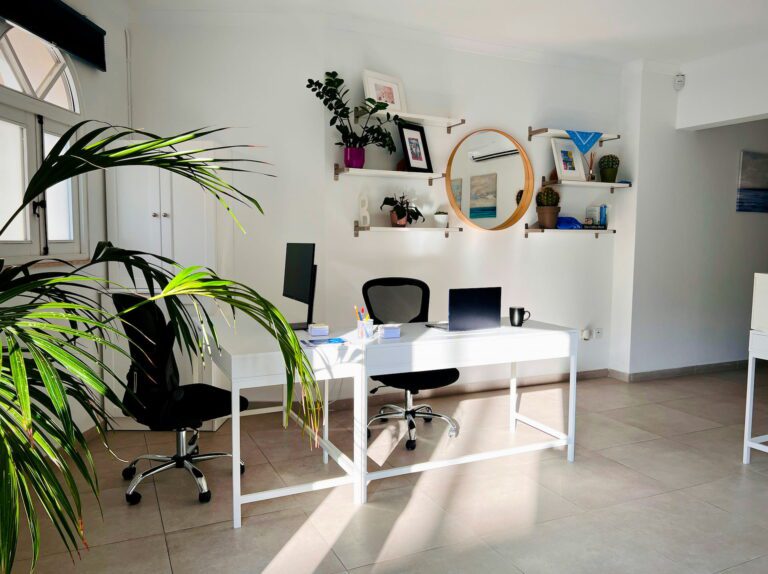
A dual monitor setup is one of the highest-impact upgrades you can make to a home office. More screen space means fewer window switches, less alt-tabbing, and the ability to keep reference material, communications, and your primary work visible at the same time. For most remote workers, going from one monitor to two is a bigger productivity shift than almost any other single desk upgrade.
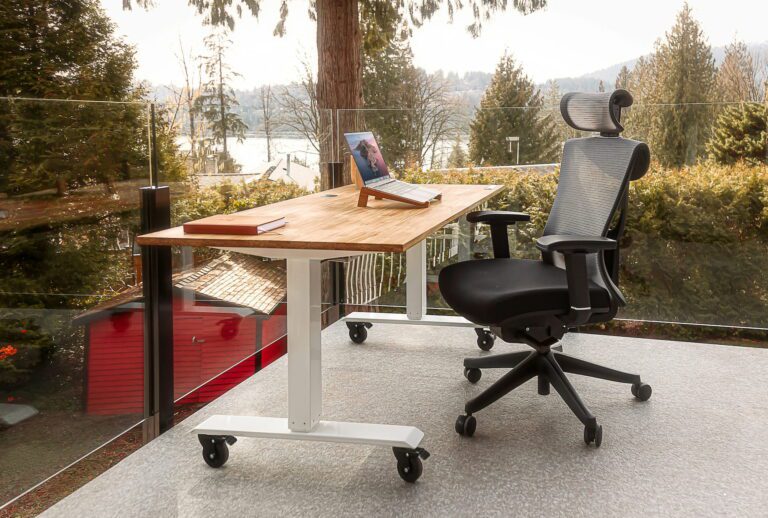
This guide covers everything you need to build a complete dual monitor home office setup — the monitors, mounting arm, connectivity, and wide desk mat. Budget setup runs around $338. Premium curved setup around $474.
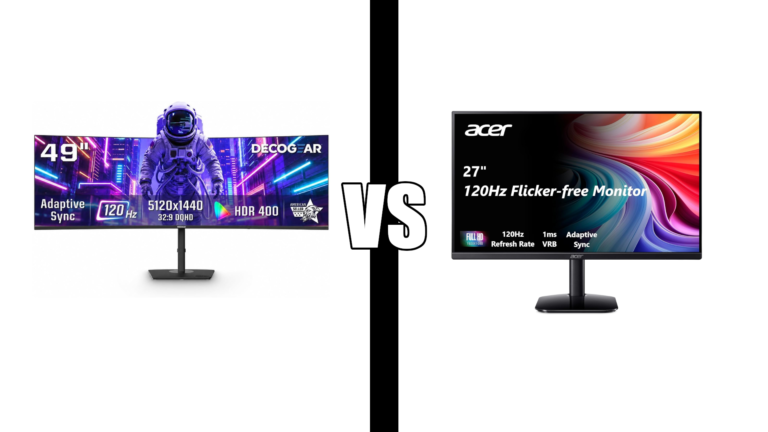
Still deciding between two screens and one wide one? Our ultrawide vs dual monitors comparison breaks down screen sharing, portrait mode, and desk space for each.
A dual monitor stand keeps both screens at the same height without mounting hardware. See our best monitor stand guide for dual monitor riser options.
Jump to a section
1. The monitors
Matching monitors are the cleanest option for a dual setup — same size, same resolution, same color profile. Mismatched monitors at different heights or brightness levels create visual fatigue as your eyes adjust moving between screens. Two 27″ 1080p monitors is the practical sweet spot for most home office desks.
Budget option — Philips 27″ 100Hz

The Philips 27″ is the default recommendation for a budget dual monitor setup for one specific reason: the virtually bezel-free design on three sides. When you place two monitors side by side, the gap between them is determined by the bezel width. The Philips frameless design minimizes that gap, making two screens feel more like one continuous display.
Two Philips 27″ monitors at $99.99 each comes to $200 for the pair — leaving solid budget for the arm, hub, and desk mat. VESA mounting holes on the back mean it’s fully compatible with the HUANUO arm below. One HDMI and one VGA port per monitor — you’ll need a hub or docking station if your laptop or computer doesn’t have two separate video outputs.
“This monitor has exceeded my expectations in every way. The Full HD display is incredibly crisp and vibrant — colors look natural without being over saturated and text is sharp, making long work sessions easy on the eyes. The thin bezel design gives it a modern clean look and makes it great for multi-monitor setups. Lightweight, slim, and fits beautifully on the desk. Low blue light mode makes it comfortable to use for hours. Setup was extremely easy — just plug and go. If you’re looking for a monitor that delivers impressive clarity and looks stylish without breaking the bank, this is a fantastic choice.”
Pros:
- Frameless bezel — minimal gap in dual setup
- VESA compatible — works with monitor arms
- 178° wide viewing angles
- 4-year advance replacement warranty
- Multiple size options available
Cons:
- VGA as second input — older connection standard
- Glossy screen surface can reflect in bright rooms
| Spec | Detail |
|---|---|
| Price | ~$99.99 each |
| Size | 27″ |
| Resolution | 1920×1080 FHD |
| Refresh rate | 100Hz |
| Inputs | 1x HDMI, 1x VGA |
| VESA | Yes |
Premium option — Samsung 27″ Essential S3 Curved

The Samsung curved option at $170.81 each — $341.62 for the pair — buys you the 1800R curved panel that wraps more closely around your field of vision. Two curved monitors side by side create a more immersive dual setup than flat panels at the same size. Buyers specifically mention purchasing a second unit for dual workspace setups.
The TUV-certified Eye Saver Mode is verified third-party blue light and flicker reduction — worth noting for anyone spending extended hours across two screens. Worth being clear about the review count: 79 reviews is a smaller sample than the Philips, though 4.7 stars and Samsung’s brand reliability offset some of that.
“This monitor hits a sweet spot — large 27-inch screen, clean professional look, reliable performance without paying for features you don’t need. It’s not meant for high-end color grading or competitive gaming, but for office work, emails, spreadsheets, and general business use it’s exactly what you want. The curved design improves focus, 100Hz is smooth, and the eye care features make it comfortable for long hours. It won’t impress you with flashy features but it quietly makes your workday smoother and more comfortable — which is exactly what a good office monitor should do.”
Pros:
- 1800R curved — more immersive dual setup
- TUV-certified Eye Saver Mode
- Samsung brand reliability
- 4.7 stars — highest rated monitor here
- VESA compatible
Cons:
- $170.81 each — $341.62 for the pair
- Only 79 reviews — less validated than Philips
- HDMI + D-sub only — no DisplayPort
| Spec | Detail |
|---|---|
| Price | ~$170.81 each |
| Size | 27″ |
| Resolution | 1920×1080 FHD |
| Refresh rate | 100Hz |
| Panel | 1800R curved VA |
| VESA | Yes |
2. Monitor arm
For a full breakdown of every monitor arm option at every price point see our best monitor arm guide.

A dual monitor arm holds both screens independently off the desk surface, lets you adjust each monitor’s height and angle separately, and frees up the entire desk area underneath by removing both monitor stands. For a dual setup this is the cleanest aesthetic upgrade alongside the monitors themselves.
The HUANUO FlowLift is the most reviewed dual monitor arm available at 34,396 reviews and 4.6 stars — 10,000+ bought last month. Full motion adjustment covers +85°/-50° tilt, +/-90° swivel, and 360° rotation. Raises up to 15.75″ to get both monitors to true eye level regardless of desk or chair height.
The dual C-clamp locks onto your desk edge without drilling and supports desks from 0.59″ to 3.54″ thick. Grommet mounting is included as an alternative. Compatible with both VESA 75×75 and 100×100 — fits both monitors in this guide.
“Very sturdy and well made. Easy to mount to the desk — I used the screw mount rather than the clamp and it’s solid as a rock. I have two 27-inch curved monitors attached and once set and adjusted at the hinges, the monitors stayed exactly how I positioned them. No bobbing up and down or twisting off the vertical plane. Very stable. Switching from the stands that came with the monitors freed up a tremendous amount of desk space. A little more expensive than some other mounts but well worth the cost. Highly recommend.”
Check three compatibility conditions before purchasing: monitor size 13-32″, monitor weight 4.4-19.8 lbs, and wooden desk without cross beams underneath.
Pros:
- 34,396 reviews — most proven dual arm available
- Full motion tilt, swivel, rotate, height while being sturdy
- Raises up to 15.75″
- Dual C-clamp + grommet options
- Fits both monitors in this guide
- Alloy steel construction
Cons:
- Wooden desks only — not plastic or glass
- Desk thickness must be 0.59″-3.54″
- No cross beams under desk
| Spec | Detail |
|---|---|
| Price | ~$54.62 |
| Fits | 13-32″ monitors |
| Weight capacity | 4.4-19.8 lbs each |
| Movement | Tilt, swivel, rotate, height |
| Max height | 15.75″ |
| Mount | C-clamp or grommet |
3. Connectivity
A docking station is the cleanest way to connect dual monitors alongside your other peripherals. See our best docking stations guide for five tested options.
Adding a second monitor means needing two video outputs. Most desktops handle this natively. Most laptops need a hub or adapter. Two options depending on your setup:
Best for USB-C laptops — Anker 8-in-1 Docking Station

One USB-C cable from your laptop expands into two HDMI outputs, Ethernet, 85W charging, SD card slots, and two USB-A ports. The most complete connectivity solution in this guide — one cable handles monitors, internet, charging, and data simultaneously.
Dual HDMI supports 4K@60Hz on a single monitor or 4K@30Hz on both. 85W pass-through charging keeps your laptop powered — note a 100W PD wall charger and USB-C cable are required for full charging (not included).
Important: On macOS both external monitors display the same content (mirrored) rather than extending independently. Windows and ChromeOS support full independent dual monitor operation.
“A solid USB-C hub that covers all the basics — dual HDMI, USB ports, Ethernet, and SD card slots in a compact design. Setup is plug-and-play and it’s been reliable for everyday use. The dual monitor support is a big plus but keep in mind that on Mac both screens will mirror instead of extend. It can get a little warm with heavy use and you’ll need your own power adapter for full charging performance. Great value and functionality for most users — just know the limitations depending on your device.”
Pros:
- Dual HDMI from one USB-C connection
- Gigabit Ethernet included
- 85W PD charging
- SD and microSD slots
- 18-month Anker warranty
Cons:
- macOS mirrors displays — no independent extension
- Not compatible with Linux
- 100W wall charger required — not included
| Spec | Detail |
|---|---|
| Price | ~$40.68 |
| Ports | 2x HDMI, Ethernet, USB-C PD, 2x USB-A, SD, microSD |
| macOS | Mirrors only |
| Charging | 85W pass-through |
Best for Mac and Windows — WAVLINK Dual HDMI Adapter

The WAVLINK works via USB-A or USB-C and supports true extended display on both Windows and macOS — not just mirrored. For Mac users who want independent dual monitor operation, this is the option that actually works where the Anker doesn’t. Read the review below to 100% give you confirmation this will work for your Mac.
Supports up to 1920×1080@60Hz on both displays — perfect for the 1080p monitors in this guide. Can extend to 3 separate screens total using your laptop screen as the third. Driver installation is required — not plug and play. Not recommended for gaming or graphic-intensive work, but works great for productivity tasks.
“I cannot tell you how long and how much money I spent trying to find an adapter to run dual monitors with my MacBook Air M4. I tried other expensive ones including a $119 Anker — they extend to one screen but not two independently. Downloaded the drivers, plugged it in, and within 10 minutes from download I had two screens working with my MacBook as an additional third screen. I have two 27-inch curved Samsung monitors for my home setup and I cannot tell you how excited I am to finally find something that actually works on a MacBook. Stop searching and buy this.”
Pros:
- True extended display on macOS — not mirrored
- Works with USB-A and USB-C
- 3 screens total possible
- 24-month warranty and lifetime support
Cons:
- Driver installation required
- No Ethernet or charging passthrough
- Not for gaming or graphic-intensive work
- Not compatible with Linux or iPadOS
| Spec | Detail |
|---|---|
| Price | ~$46.92 |
| Connection | USB-A or USB-C |
| Resolution | Up to 1920×1080@60Hz |
| macOS | Extended display supported |
| Driver | Required |
4. Wide desk mat

A standard desk mat sized for a single monitor setup falls short on a dual screen desk. At 47″ wide the AFIING spans a full dual 27″ monitor setup comfortably — covering keyboard, mouse, and the space between them in one continuous surface that unifies the whole setup visually.
The dual-sided construction gives you PU leather on top for smooth mouse movement and natural cork underneath for grip. Waterproof surface handles spills without staining. 16 color options cover most desk aesthetics. Also available in 23.6″ x 13.7″, 31.5″ x 17″, 36″ x 17″, 47″ x 17″, and 55″ x 17″ if you need a different configuration.
For more desk mat options at every price point see our best desk mats guide.
“Love this mat for my home office desk. Great quality and holds up really well against regular wear and tear. Works well with my desk mouse and gives a slight cushion to the desk surface. Love the color too.”
Pros:
- 47″ wide — spans full dual monitor setup
- Dual-sided cork and PU leather
- Waterproof
- Non-slip base
- 16 color options
- 4.7 stars across 2,103 reviews
Cons:
- Cork backing adds slight thickness
- Large size takes up significant desk surface
| Spec | Detail |
|---|---|
| Price | ~$26.56 |
| Size | 47″ x 23.6″ |
| Material | PU leather top, cork backing |
| Colors | 16 options |
| Waterproof | Yes |
5. Total cost breakdown
| Item | Budget setup | Premium setup |
|---|---|---|
| 2x Monitors | 2x Philips 27″ ~$200 | 2x Samsung curved ~$342 |
| Monitor arm | HUANUO dual arm ~$55 | HUANUO dual arm ~$55 |
| Connectivity | WAVLINK adapter ~$47 | Anker docking station ~$41 |
| Desk mat | AFIING 47″ ~$27 | AFIING 47″ ~$27 |
| Extra HDMI cable | ~$9 | ~$9 |
| Total | ~$338 | ~$474 |
The budget setup at ~$338 gives you a complete functional dual 27″ monitor setup. The premium setup at ~$474 upgrades to Samsung curved monitors for a more immersive experience. Both include proper mounting, connectivity, and a wide desk mat.
6. How to configure dual monitors in Windows
Once both monitors are physically connected:
- Right-click the desktop → Display settings
- Both monitors appear as numbered rectangles — drag them to match their physical position
- Under Multiple displays select Extend these displays
- Set your primary display — where your taskbar and new windows appear
- Confirm resolution is set to native on each monitor (1920×1080 for monitors in this guide)
- Adjust scale if needed — 100% is standard for 27″ 1080p
For a full step-by-step walkthrough see our how to set up dual monitors guide.

Continue reading
Frequently asked questions
Do both monitors need to be the same brand?
No — any two monitors with compatible connections work together. Matching monitors of the same size and resolution creates the most consistent visual experience. Mismatched monitors at different sizes or resolutions can cause visual fatigue.
Can I use my laptop screen as a third display?
Yes — Windows lets you use your laptop screen alongside two external monitors for three screens total. The WAVLINK adapter specifically supports this three-screen configuration.
Do I need a graphics card for dual monitors?
Most modern laptops and desktops support dual monitors through built-in graphics without a dedicated GPU as long as your device has two video outputs or supports a USB-C docking station.
What desk width do I need for dual 27″ monitors?
Two 27″ monitors need roughly 55-60″ of desk width to sit comfortably side by side. With a monitor arm you can angle them slightly inward which reduces the total footprint needed.
Is an ultrawide better than dual monitors?
An ultrawide gives you continuous screen space without a bezel gap — better for immersive tasks. Dual monitors give you a clear physical divide between separate workspaces — better for multitasking between different applications. See our best budget monitors guide for ultrawide options.
All prices approximate and subject to change. Check current pricing at checkout. Last updated July 2026.