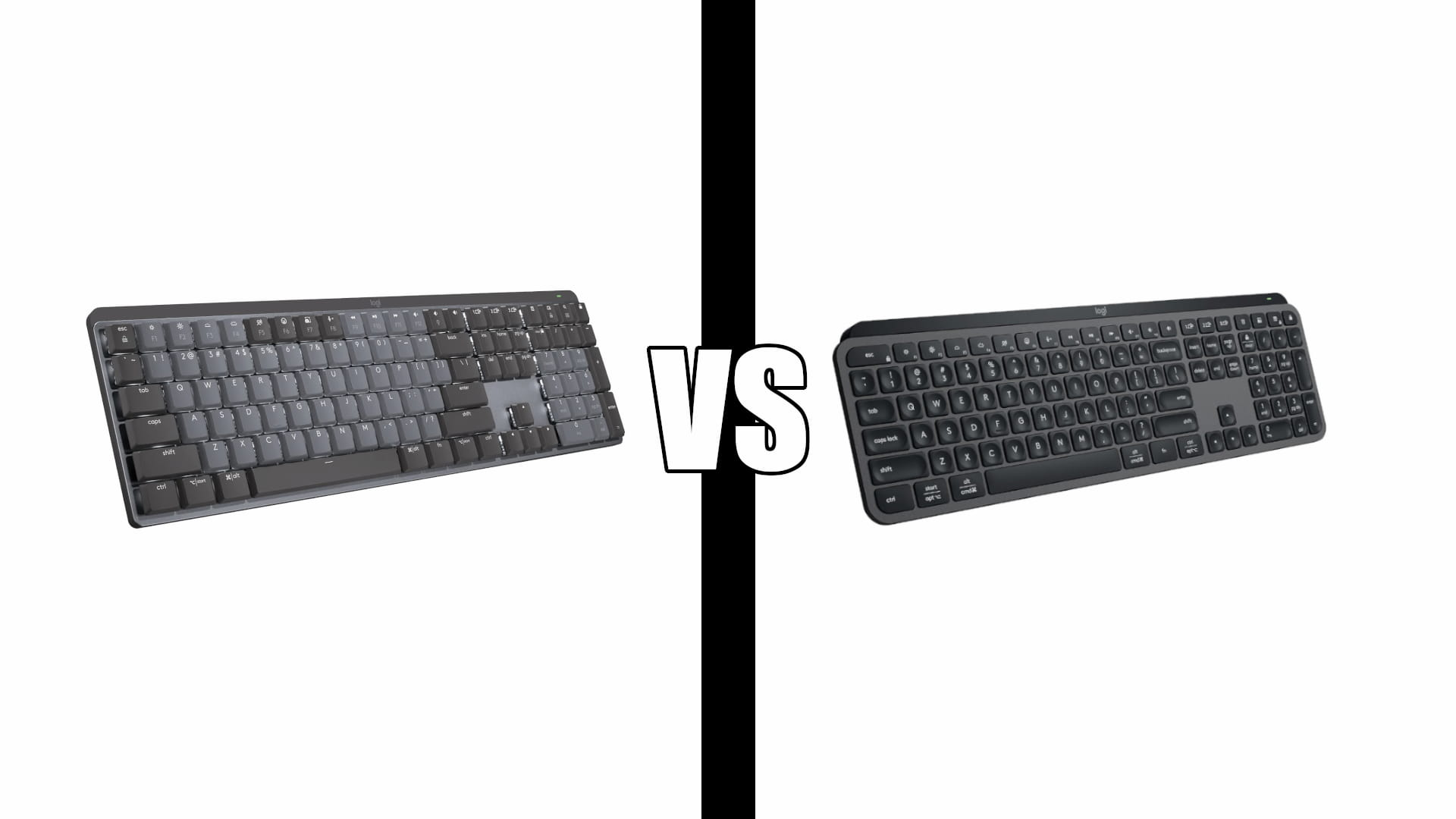
Logitech MX Mechanical vs MX Keys S: Which to Buy (2026)
Category: Tech & Gear | Reading time: 14 min | Last updated: November 2026
Disclosure: This post contains affiliate links. If you buy through our links we may earn a small commission at no extra cost to you.
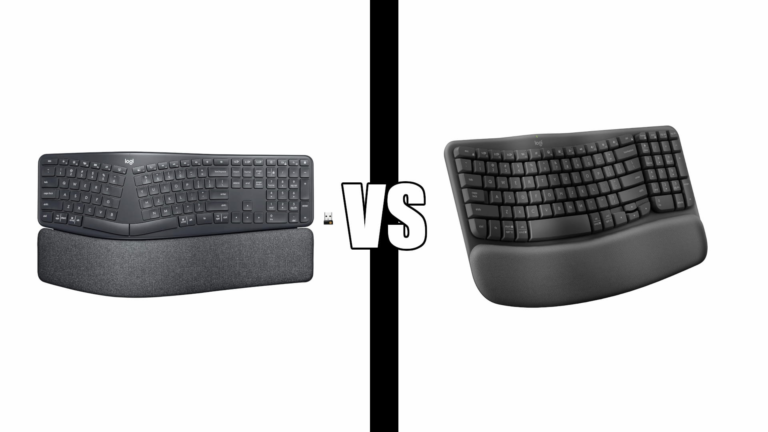
Logitech MX Mechanical vs MX Keys S. These are Logitech’s two premium full-size keyboards, and the obvious difference is the one in the names. One has mechanical switches, the other has the low scissor keys you know from a laptop. That part is easy.
What nobody tells you is that both boards share the same flaw, and it has nothing to do with switches. It is the backlight. On the MX Mechanical the light sleeps so aggressively that owners describe waiting for their keyboard to wake up. On the MX Keys S the legends are so faint that one long-term owner runs the brightness at maximum just to read his function keys, which then ruins the battery life.
One of those problems has a fix. It is not in the manual, it is not on the product page, and Logitech’s own documentation does not mention it. An owner found it by accident. That fix is the most useful thing in this post, and it is further down.
Better feel,
or better seller
Jump to a section
The short answer – Logitech MX Mechanical vs MX Keys S
Most people should buy the MX Keys S. It rates higher at 4.4 across 3,889 reviews, it sells more than six thousand units a month, it costs less, and the low scissor keys are what the majority of people actually want on a desk they work at all day. It is the safe answer and the volume says so.
Buy the MX Mechanical if you care how typing feels. You get a real mechanical switch in three different feels, you get 50 percent more battery life with the backlight on, and its one serious complaint turns out to be fixable. That last part matters more than it sounds, because the MX Keys S problems are not fixable.
Whichever you buy, connect it with the Logi Bolt receiver rather than Bluetooth. That single choice removes the worst thing about the MX Mechanical and gives you control over the backlight on both boards. It costs you a USB-A port.
MX Mechanical in detail

The MX Mechanical is the only one of the two that lets you choose how the keys feel. Tactile gives you a bump without a click, Linear is smooth all the way down, and Clicky is the loud one. That choice is made at checkout and cannot be changed later, so it is worth thinking about for a minute rather than defaulting.
It also quietly wins on battery, which is the opposite of what you would expect. Fifteen days with the backlight on against the MX Keys S’s ten, and ten months with it off against five. The pricier board with the bigger switches lasts half again as long.
The 4.2 rating is the lowest number on this page and it needs explaining. Two thirds of reviewers give it five stars and 14 percent give it one or two, with not much in between. That is not a mediocre keyboard, it is a keyboard that works beautifully for most people and is genuinely frustrating for a minority. The single most useful review on the listing explains exactly who falls into which group and why.
“If you connect this keyboard to your Mac with Bluetooth, the backlight turns off moments after you stop typing, and the keyboard goes to sleep. If you spend even 30 seconds using your mouse and then go back to the keyboard, you’ll be waiting what seems like forever for the backlight to come back on and for the keys to start responding again. And there’s no way to configure this to be any less annoying. It’s nearly unusable and I was about to get rid of it after wasting a lot of time looking for fixes. When you switch from Bluetooth to using the bundled Logi Bolt receiver, suddenly everything works great. You can use the Options+ software to configure how long the backlight stays on. No more annoying instant sleep. Verdict: Great keyboard as long as you have a USB-A slot open for the Bolt dongle.”
That is the whole ballgame and it gets its own section below, because it almost certainly explains a chunk of the one-star reviews too. Someone who plugs this in over Bluetooth, finds the keyboard unresponsive after every trip to the mouse, and concludes the product is broken is not wrong about their experience. They just never found the dongle in the box.
Two smaller things from owners. Plugging in the USB-C cable charges the board but does not connect it, so there is no wired fallback if you lose the receiver. And it will not pair with a PS5, if that was part of your plan.
Who it’s for. Anyone who notices keyboards. If you have ever thought about switch types, or you want a mechanical feel without the height of a normal mechanical board, this is the one. It also suits anyone who hates charging things, given the battery advantage. Just budget a USB-A port for it.
MX Keys S in detail

This is the one people buy. More than six thousand a month, 3,889 reviews against the MX Mechanical’s 2,268 despite being the newer product, and the better rating at 4.4 with only 10 percent of reviewers at one or two stars. When a product outsells its sibling three to one, that is worth more than any spec comparison.
What you are buying is a keyboard you stop thinking about. The keys are dished so your fingertips land in them, the profile is low enough that your wrists stay flat, the metal frame gives it enough weight that it never slides, and it is quieter than the mechanical board by consensus rather than by marketing claim. The five-star reviews read like relief.
Smart Actions is the one feature the MX Mechanical does not match. You can chain several actions to a single keystroke in Options+, which is genuinely useful if you do the same three-step thing forty times a day.
Now the two real problems, from an owner two years in. This is the most detailed critical review on either listing and both of its complaints are structural rather than bad luck.
“I’ve had the MX Keys S for 2 years now. It’s a pretty good keyboard overall, but not great. Typing is pretty fluid and natural. The keys aren’t too tall and it’s quiet. It’s not a Windows dedicated keyboard, so it won’t have the Windows button. Kind of a pain, but you get used to it. Unfortunately, I’ve found I need to keep the brightness at peak (7 of 7) to be able to see the keys. The text on the keys is barely visible at lower levels. A well-lit room doesn’t help. I have to keep the duration at least 3 minutes with full brightness. This impacts battery life, which already isn’t great. Charge levels seem to drain rather quickly, so I wind up leaving it plugged in more often than not. Kind of takes away the point of being wireless.”
The key legends are the complaint I would weigh most heavily. It is not a preference, it is a legibility problem, and the fix for it makes the second problem worse. Running maximum brightness for three minutes at a time to read your own function keys is exactly how you get to the battery life another owner described as about a week.
That second owner put it bluntly: a Dell Bluetooth keyboard runs for years on a few AAA batteries, and this one has a large enough base to house a much bigger cell than it does. He still gave it four stars and called it amazing to type on, which tells you how good the typing is.
The missing Windows key catches people out. The layout is Mac-oriented, so Windows users adapt rather than getting a dedicated key. Most adjust within a week. It is worth knowing before rather than after.
At two years the same owner reports the build, keys and lettering all holding up, with the battery itself now failing. So the thing that wears out on this board is the one part you cannot replace.
Who it’s for. Almost everyone. If you want a premium keyboard, do not have strong feelings about switches, and would rather your desk were quiet, buy this and stop reading. If you are coming from the older MX Keys rather than choosing between these two, we compared the MX Keys and MX Keys S separately, because that is a different and much closer decision.
The backlight problem they share
Both boards use the same clever idea: the keys light up as your hands approach and the brightness adapts to the room. On both boards it is the single most complained-about feature, in opposite ways.
On the MX Mechanical the light goes away too fast. An owner who otherwise praised the build, the key action and the battery gave it three stars for this reason alone.
“There’s a lot I like about this keyboard. It’s solidly made, the key action is nice and tactile and the keys feel high quality. The battery life is excellent, perhaps for reasons I’ll get to below. So why three stars? Because the proximity backlighting control drives me nuts. I could describe specific scenarios but the bottom line is that very often when I need the backlight it isn’t on. I wish Logitech would update the firmware and give us an option to keep the backlight on. It’s easy to charge the battery from usb-c so I would gladly make the tradeoff.”
Note his aside that the excellent battery life may be a consequence of the problem rather than a separate virtue. He is probably right. The board lasts 15 days partly because the light is off most of the time you want it on.
On the MX Keys S the light is not the problem, the printing is. The legends need near-maximum brightness to read, so owners who want to see their keys run the light hard and pay for it in battery. Same feature, opposite failure.
The difference between the two situations is that one of them can be fixed today.
Use the Bolt receiver, not Bluetooth
Both keyboards ship with a small USB-A dongle called a Logi Bolt receiver, and both also pair over Bluetooth. Most people use Bluetooth, because it is one less thing in a port and because nothing tells them otherwise.
On the MX Mechanical, that choice decides whether the backlight is configurable. Over Bluetooth, the owner quoted above found the board slept within moments and woke slowly, with no setting available to change it. Plugged in through the Bolt receiver, Logi Options+ exposed a backlight duration setting and the problem disappeared. Same keyboard, same software, same computer. Only the radio changed.
Logitech does not document this. Their support article on compatible operating systems with Logi Bolt wireless products confirms both connection methods exist and compares them on exactly one axis: which operating systems each supports. The receiver covers older macOS, Bluetooth adds iPadOS and mobile. Nothing about features, nothing about sleep behavior, nothing about what Options+ will and will not let you change depending on how you connected.
So this is a thing owners had to discover for themselves, and it is very likely sitting underneath some portion of the one-star reviews on a keyboard that costs what this one costs.
The practical cost is a USB-A port, which is the one port modern laptops have been quietly deleting. If you are out of them, that is what a USB hub is for, and it is a cheaper fix than replacing the keyboard. Worth checking your ports before you order either board.
Specs side by side
| MX Mechanical | MX Keys S | |
|---|---|---|
| Rating | 4.2 / 2,268 | 4.4 / 3,889 |
| One and two star share | 14% | 10% |
| Bought last month | Not stated | 6,000+ |
| Switch | Low-profile mechanical | Scissor, linear |
| Switch options | Tactile, Linear, Clicky | One feel only |
| Battery, backlight on | Up to 15 days | Up to 10 days |
| Battery, backlight off | Up to 10 months | Up to 5 months |
| Keys | 104 | 104 |
| Smart Actions macros | No | Yes |
| Devices paired | 3 | 3 |
| Connection | Bluetooth LE or Logi Bolt | Bluetooth or Logi Bolt |
| Wired operation | No, charges only | No, charges only |
| Sizes | Full Size, Compact | MX Keys S, MX Keys Mini |
| Colors | Graphite | Graphite, Pale Grey |
| Recycled plastic | 45% | 26% |
The battery rows are the surprise. The mechanical board with the bigger switches runs half again as long on a charge, in both modes.
Is the Tactile switch actually quiet
Logitech sells the MX Mechanical’s Tactile switch as the quiet one, describing less noise so your typing does not disturb people around you. Owners of that exact switch disagree with each other about whether that is true.
“Won’t connect to a PS5. My backspace key is squeaky and it’s driving me nuts. Only works wirelessly, plugging it in will charge the device but won’t actually connect it. For the price this is absolutely absurd. I got the Tactile version and I wouldn’t call this quiet. It’s like any other keyboard. I absolutely love the size and low profile however. It’s enough to make me overlook the downsides.”
Meanwhile a five-star owner of the same Tactile switch praises its “great clicky sound” as one of the reasons he loves it. One buyer wanted silence and heard a normal keyboard. The other wanted feedback and got it. They are describing the same hardware.
What to take from that: Tactile is quiet compared to Clicky, not quiet compared to the MX Keys S. If the person on the other side of the room is the constraint, or you are on video calls with an open mic, the scissor keys are the safer answer. Mechanical switches of any kind make more noise than scissor switches, and no switch name changes that.
Mechanical or scissor
Strip out the backlight and the battery and this is the actual decision, so it is worth stating in plain terms.
Scissor keys, which the MX Keys S uses, travel a short distance and bottom out softly. They are what you have been typing on if you use a laptop. They are quieter, they let the board sit lower so your wrists stay flatter, and most people find them unremarkable in the best sense.
Mechanical switches travel further, register partway down rather than at the bottom, and give you something to feel. People who type a lot often type faster and more accurately on them, because the feedback tells you a keystroke landed without you having to bottom the key out. They are also louder and the board is taller, though the MX Mechanical’s low-profile switches narrow both gaps considerably.
Neither of these is an ergonomic keyboard in the split or curved sense. If your wrists hurt, that is a different product category and a different purchase.
Honest note on the three switch options: nobody who has not used mechanical keyboards can reliably predict which they will prefer from a description. Tactile is the sensible default and the one most buyers choose. Linear if you want nothing in the way. Clicky only if you already know you like clicky, and not if you share a room.
Which one to buy
| If you | Buy |
|---|---|
| Are not sure | MX Keys S |
| Want it quiet for calls or a shared room | MX Keys S |
| Want macros on one keystroke | MX Keys S, for Smart Actions |
| Are coming from a laptop keyboard | MX Keys S |
| Care how typing feels | MX Mechanical |
| Type for a living | MX Mechanical |
| Hate charging things | MX Mechanical, 15 days to 10 |
| Want to choose your switch | MX Mechanical, three feels |
| Have no USB-A port free | MX Keys S, and expect to fight the light |
| Need to read your keys in a dim room | MX Mechanical, the legends are clearer |
| Want a smaller board | Either, both sell a compact version |
Buy the MX Keys S unless something above pulled you the other way. It outsells the MX Mechanical three to one, rates higher, costs less, and for most people a keyboard they never think about is the correct outcome.
The case for the MX Mechanical is narrower but real. Its serious flaw has a fix, and the MX Keys S’s two flaws, faint legends and a battery that gets left plugged in, do not. If you type all day and you have a USB-A port to spare, the mechanical board is the better keyboard and the worse seller, which happens more often than product pages admit.
Frequently asked questions
What is the difference between the MX Mechanical and the MX Keys S?
The switches. The MX Mechanical has low-profile mechanical switches you can order in three feels, and lasts up to 15 days on a charge with the backlight on. The MX Keys S has laptop-style scissor keys, one feel, up to 10 days, and adds Smart Actions macros. Both are full-size, both pair with three devices, both charge over USB-C.
Why does my MX Mechanical backlight keep turning off?
Because you are probably connected over Bluetooth. Owners report that on Bluetooth the board sleeps within moments and wakes slowly, with no way to change it. Connecting through the included Logi Bolt USB receiver instead makes the backlight duration configurable in Logi Options+ and stops the aggressive sleeping. Logitech does not document this difference anywhere.
Is the MX Keys S backlight bright enough?
The light is fine, the printing on the keys is the issue. One owner two years in reports needing maximum brightness to read the legends at all, and says a well-lit room does not help. Running the light that hard is what produces the battery complaints. If you often need to find a function key by sight, this is the board’s real weakness.
How long does the battery actually last?
Logitech claims up to 15 days for the MX Mechanical and 10 for the MX Keys S with backlighting on. In practice MX Keys S owners report about a week, and one notes the backlight settings needed to read the keys make it worse. One owner’s MX Keys S battery was failing at the two-year mark while everything else on the board still worked.
Can I use either keyboard wired?
No. On both boards the USB-C cable charges the keyboard but does not carry input. If you lose the Bolt receiver, Bluetooth is your only remaining option, which on the MX Mechanical means living with the backlight behavior. Keep the dongle.
Does the MX Keys S have a Windows key?
No dedicated one. The layout is Mac-oriented, so Windows users adapt. Owners describe it as a minor annoyance they got used to rather than a reason to return it.
Which MX Mechanical switch should I pick?
Tactile unless you have a reason. It is the default most buyers choose and it gives feedback without a click. Choose Linear if you want nothing in the way of the keystroke, and Clicky only if you already know you enjoy that and nobody shares your room. Be aware that Tactile is quiet relative to Clicky, not relative to a scissor keyboard, and owners of the Tactile version disagree about how loud it is.
Will either work with a PS5?
An MX Mechanical owner reports it would not connect to one. These are productivity keyboards built around Windows, macOS, Linux and ChromeOS, and console support is not something Logitech claims for either board.
Continue reading
Battery and switch claims are Logitech’s own published figures. The Logi Bolt connection difference is reported by owners and is not documented by Logitech, which compares the two connection methods only on operating system support. Specifications taken from current manufacturer listings and verified buyer reviews. Prices change often, so check at checkout. Last updated November 2026.