How to Set Up a Home Office for Remote Work: 2026 Guide
Category: How-To Guides | Reading time: 13 min | Last updated: June 2026
Disclosure: This post contains affiliate links. If you buy through our links we may earn a small commission at no extra cost to you.
Most home office guides assume you have a spare room, a generous budget, and a weekend to spare. This one doesn’t.
This is a practical guide for remote workers on how to set up a home office in the real world — whether that’s a corner of your bedroom, a small apartment, a shared space, or a dedicated room you’re finally getting around to organizing properly. The principles are the same regardless of your situation and the budget options cover everything from $200 to $2,000+.
By the end of this guide, you’ll know exactly what to prioritize, what to skip, and how to build a setup that actually improves how you work rather than just looking good in photos.
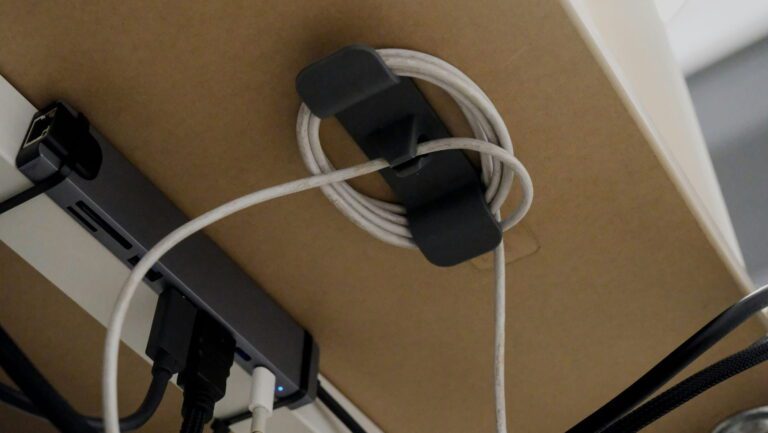
A USB hub is one of the most effective tools for reducing cable clutter — our USB hub guide covers seven options at every price point.
Step 1 — Choose and claim your space
The single most important decision in a home office setup isn’t what chair you buy or which monitor you get. It’s where you work.
Your brain associates locations with behaviors. The couch is for relaxing. The kitchen table is for eating. A dedicated workspace — even a small one — signals to your brain that it’s time to work. Research on psychological detachment from work consistently shows that people who have a defined workspace separate from their relaxation spaces report better focus during work hours and better recovery during off hours.
You don’t need a separate room. What you need is a consistent, dedicated spot.
In a small apartment or studio:
A corner with a desk facing a wall creates a defined workspace without requiring a separate room. The direction you face matters — facing a wall while working and turning away from it when you’re done creates a physical boundary between work mode and home mode.

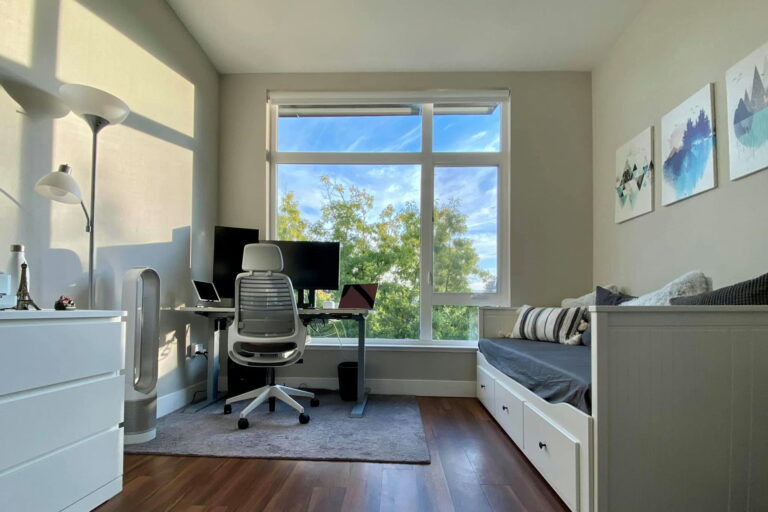
In a bedroom (where my home office is stationed):
Position your desk away from the bed if possible. Working from bed is the fastest way to destroy both your sleep and your focus. If your only option is a small bedroom desk, a room divider or even a curtain between the bed and desk creates a psychological separation.

In a shared space:
Noise-cancelling headphones become essential rather than optional. Establish clear signals with the people you share space with — headphones on means do not disturb.

The non-negotiables for any space:
- Enough surface area for your monitor, keyboard, and mouse without feeling cramped — minimum 48″ wide
- A power outlet within reach
- Some natural light if possible — face a window rather than sit with a window behind you
- Enough vertical clearance for a monitor at eye level
Once you’ve identified your space everything else follows.
For the bigger picture beyond the physical setup our complete guide to working from home covers routines, distractions and sustainable habits.
Step 2 — Get your desk right

Your desk is the foundation everything else sits on. Getting this wrong makes every subsequent purchase less effective.
Size matters more than aesthetics. A beautiful small desk that leaves you cramped is worse than a basic large desk with room to spread out. For a single monitor setup minimum 48″ wide and 24″ deep. For dual monitors 55″+ wide is worth the extra footprint.
The three desk options at different budgets:
Under $200 — IKEA LINNMON + legs
The most recommended budget desk in every home office community. The LINNMON tabletop at $30-50 combined with ALEX drawers or ADILS legs gives you a large, functional surface for under $150. Not glamorous but practical and proven.
$200-400 — Pre-built standing desk
If you’re going to spend money on one piece of furniture make it the desk and make it a standing desk. The ability to alternate between sitting and standing throughout the day reduces afternoon mental fatigue in a way a stationary desk can’t. Our full standing desk guide covers options from $113 to $500 with honest reviews on each.
$400+ — Premium standing desk
The Vari Essential Electric or Flexispot E6 (in our full standing desk guide) at this range gives you a setup that’ll last a decade. If you work from home full-time this is where the investment pays off most clearly.
The desk surface question:
Whatever desk you choose, a large desk pad transforms how it feels to work on. It creates a unified, intentional surface, protects the desk, and gives your mouse somewhere clean to track. Our home office accessories guide covers the best options under $30.
For a complete guide to hiding cables and organizing your desk our cable management guide covers every solution from under desk trays to wireless charging
Step 3 — Invest in a proper chair

You will spend more hours in your chair than in any other piece of furniture you own. This is not the place to cut corners.
The problem with most budget chairs isn’t that they’re uncomfortable on day one — it’s that they cause cumulative damage to your posture and lower back over months of 6-8 hour work days. By the time you notice the problem you’ve already done it.
What to look for:
Adjustable lumbar support (height AND depth), seat depth adjustment, 4D armrests, and a breathable mesh back if you run warm. These aren’t luxury features — they’re the adjustment range that lets the chair actually fit your body rather than forcing your body to fit the chair.
Budget reality:
A decent ergonomic chair under $400 is achievable. Our complete ergonomic chair guide covers six chairs ranked by real remote workers — from a $175 budget pick to a $389 premium option — with honest pros and cons on each.
The one thing worth saying here: if you’re currently sitting on a dining chair or a cheap task chair and your back hurts by 2pm, a proper ergonomic chair will make a more noticeable difference to your daily experience than almost any other upgrade on this list.
Step 4 — Set up your monitor situation
Your laptop screen is not your friend for full-time remote work. The resolution is often fine. The size, height, and fixed position are the problems.
Working on a laptop screen placed flat on a desk means your neck is angled down for hours. Over a full work week that’s significant cumulative strain. An external monitor at eye level eliminates this immediately.
The minimum upgrade:
One external monitor, 24″-27″, positioned so the top of the screen is at eye level. If you continue using your laptop alongside it you effectively have a dual monitor setup.
The proper setup:
A dedicated external monitor plus a laptop stand that raises your laptop screen to a similar height. This creates an ergonomic dual screen setup without buying a second monitor.
Our complete dual monitor setup guide walks through the exact steps for configuring this on Windows and Mac, what cables you need, and how to arrange the displays for maximum productivity.
Monitor arm vs monitor stand:
A monitor arm ($30-40) frees up significant desk space compared to a monitor stand and lets you position the screen exactly where you need it. Worth the small investment especially on smaller desks.
A laptop stand is one of the most impactful single upgrades for desk ergonomics and organization — our laptop stands guide covers eight options across every budget and style.
Step 5 — Sort your peripherals

A wireless keyboard and mouse is one of the highest return upgrades for desk aesthetics and day-to-day usability. No cables means a cleaner surface, easier height adjustment on a standing desk, and the ability to reposition everything without untangling anything.
The practical picks:
For most people the Logitech MK470 at $35 is all you need — quiet keys, solid wireless connection, 36-month battery life. Plug in the USB receiver and it works.
For heavier users the Logitech MX Keys S + MX Master 3S pairing at $200 is the combination that gets talked about in every productivity community. The MagSpeed scroll wheel on the MX Master 3S alone changes how you navigate long documents. Our full wireless keyboard and mouse guide covers all options at every budget.
For ergonomic mouse specifically our Logitech Lift vs MX Vertical comparison covers the two most popular options and which hand size each suits.
Cable management:
Deal with your cables before you get used to them. A cable management tray under the desk, some velcro ties, and desk grommets take 30 minutes to set up and make the space feel significantly more intentional. The psychological effect of a clean desk on focus is well-documented and worth the $15-20 investment.
For specific gadget recommendations that solve common home office problems our home office gadgets guide covers seven of the best picks for remote workers.
Step 6 — Set up your video call presence
Remote work means video calls. How you look and sound on those calls is part of your professional presentation in a way it never was in an office.
The three things that matter:
Camera: Your laptop webcam is designed to technically function, not to make you look good. A $60 external webcam like the Logitech C920x at eye level makes an immediate visible difference to everyone on the call.
Lighting: More important than your camera. Sit facing a window for free natural lighting, or add a small key light like the Logitech Litra Glow ($80) for consistent results regardless of time of day or weather.
Audio: Bad audio is more disruptive than bad video. A basic headset with a boom microphone like the Logitech H390 ($20) dramatically improves how you sound compared to a laptop microphone picking up everything in the room.
Our complete video call setup guide covers all three areas with specific product recommendations at every budget — from a $115 basic upgrade to a full $430 professional setup.
A monitor light bar is one of the highest-impact upgrades for eye comfort — our complete guide breaks down the best options at every budget.
Step 7 — Manage your noise environment
This one gets skipped in most home office guides and it shouldn’t.
The University of California Irvine found that it takes an average of 23 minutes to fully regain focus after an interruption. At home the interruptions are constant — delivery drivers, neighbors, household noise, the dog, traffic. Every interruption doesn’t just cost you the moment it happens. It costs you the next 23 minutes of recovery time.
The practical fix:
Noise cancelling headphones or earplugs during deep work blocks. Not for calls — for focused work. The Loop Quiet earplugs at $25 are the most recommended option for desk work specifically. Over-ear ANC headphones like the Sony WH-1000XM5 or Anker Soundcore Q20i handle more serious noise environments.
If Sony headphones are on your list our XM5 vs XM6 comparison will help you decide which model is worth it for remote work.
Our noise cancelling headphones guide covers the full range from a $45 budget pick to professional Jabra gear — with separate sections for over-ear headphones, earbuds, and work headsets with boom mics.
Step 8 — Add the productivity layer

Once your physical setup is sorted the next layer is the small items that make a meaningful difference to how you actually work day to day.
The things worth adding:
A whiteboard for visual task planning — seeing your priorities on a physical board keeps them present without requiring your brain to hold them. Significantly more effective than a to-do app that’s three clicks away.
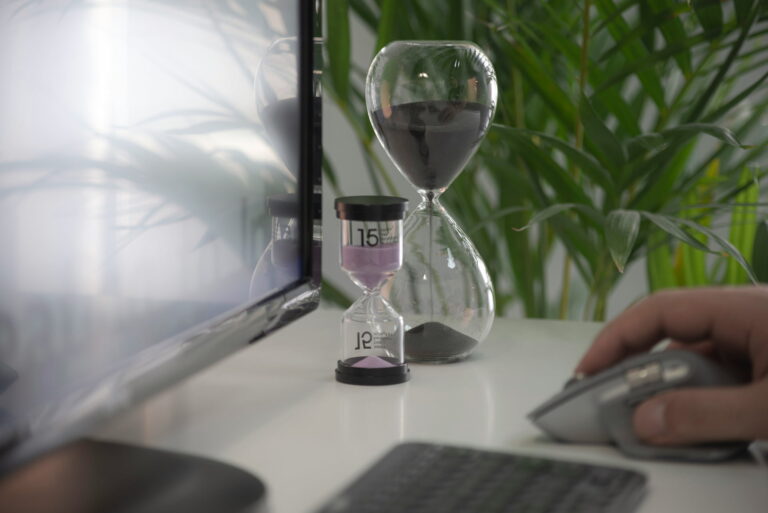
A physical timer for focus sessions — the Pomodoro Technique (25 minutes focused work, 5 minute break) is one of the most researched focus methods available. A physical timer like the Time Timer keeps you off your phone during work sessions.
A plant — multiple studies have found desk plants reduce stress and improve concentration. A pothos from Costa Farms is $26, requires almost no maintenance, and makes the space feel less clinical.
Our full list of physical productivity items covers 10 desk items with real owner reviews — from a $15 blue light glasses to a $170 under-desk elliptical.
Step 9 — Set up your focus systems
A great physical setup helps but it doesn’t automatically make you productive. The habits and systems you build around the space matter as much as the space itself.
The highest-impact changes:
Phone in another room during deep work — a University of Texas study found the mere presence of a smartphone on a desk reduces cognitive capacity even when face down and silent.
Scheduled communication windows — checking email and Slack at set times (morning, midday, late afternoon) rather than continuously throughout the day. The APA found task-switching reduces productivity by up to 40%.
A shutdown ritual — a consistent end-of-work sequence that signals to your brain the day is over. Without a commute you need to create this transition artificially.
Our complete focus guide for remote workers covers 10 evidence-backed strategies with the research behind each one.
The budget breakdown — what to prioritize at every price point
Starting from scratch with $300:
- Desk: IKEA LINNMON setup — $100
- Chair: Sihoo M57 — $175
- External monitor: used Dell P2419H — $60-80
- Skip everything else for now
Building a proper setup for $800:
- Desk: Flexispot E2 standing desk — $160
- Chair: Branch Ergonomic Chair — $270
- Monitor: Dell P2422H new — $180
- Webcam: Logitech C920x — $60
- Keyboard/mouse: Logitech MK470 — $35
- Headset: Logitech H390 — $20
Premium setup for $1,500+:
- Desk: Vari Essential Electric or Flexispot E6 — $300-400
- Chair: Branch or Nouhaus Ergo3D — $270-320
- Monitor: 27″ IPS, 1440p — $250-300
- Webcam: Logitech Brio or MX Brio — $150-200
- Keyboard/mouse: MX Keys S + MX Master 3S — $200
- Lighting: Logitech Litra Glow — $80
- Headphones: Sony WH-1000XM5 — $248
The order that matters
If you’re building from scratch the order to spend money in:
- Chair first — you feel a bad chair in your body every day
- Desk second — surface area and standing capability
- Monitor third — eye level display eliminates neck strain
- Audio fourth — how you sound on calls is professional presentation
- Peripherals fifth — wireless keyboard and mouse, cable management
- Camera sixth — noticeable improvement but audio matters more
- Everything else — lighting, accessories, productivity tools
Most people buy in the wrong order — they get the fancy webcam before fixing the $60 chair they’ve been sitting on for two years. The chair affects your health and focus every single hour you work. The webcam affects how you look for the hour you spend on calls.
Fix the fundamentals first.
Need a better webcam?
Ready to upgrade your workspace for cheap?
Frequently asked questions
How much should I spend on a home office setup?
For a functional setup that won’t damage your posture or focus: $500-800 covers everything essential. For a setup you’ll be genuinely happy with for 5+ years: $1,200-1,500. The single highest-return investment at any budget is the chair — don’t cut corners there.
Can I set up a home office in a small space?
Yes — a 48″x24″ desk footprint is all you need. A wall-mounted monitor arm eliminates the monitor stand footprint. A compact keyboard and mouse combo keeps the surface clear. Our guide to small space setups covers specific configurations for apartments and shared spaces.
Do I need a standing desk?
Not immediately. If you’re working with a limited budget a good chair and proper monitor height will serve you better than a standing desk with a poor chair. Standing desks become valuable when you already have the fundamentals covered.
What’s the most important thing in a home office?
The chair. Followed by monitor height. Everything else is a quality-of-life improvement — those two things directly affect your physical health and cognitive performance across every hour you work.
How do I make my home office look professional on video calls?
Three things in order of impact: lighting (face a window or add a key light), camera at eye level (not looking up from a laptop screen), clean or blurred background. Our video call setup guide covers this in detail.
All product recommendations link to verified Amazon listings. Prices are approximate and subject to change. This guide was last updated June 2026.