How to Set Up an Ergonomic Home Office — Complete Guide 2026
Category: How-To Guides | Reading time: 11 min | Last updated: July 2026
Disclosure: This post contains affiliate links. If you buy through our links we may earn a small commission at no extra cost to you.
Most home offices are set up for convenience rather than comfort — laptop on whatever surface is available, chair that came with the desk, screen at whatever angle it lands. That works for an hour. After six or eight hours it shows up as neck pain, wrist discomfort, lower back ache, and afternoon fatigue that has nothing to do with how hard you’re working.
An ergonomic setup isn’t about expensive equipment. It’s about positioning. Getting the angles and heights right costs nothing and makes more difference than any single product you can buy. The products help — but the positioning comes first.
This guide covers everything you need to set up an ergonomic home office that supports your body through a full workday.
If you use a laptop at your desk a cooling pad prevents thermal throttling — our best laptop cooling pad guide covers seven options at every budget.
Jump to a section
1. Chair
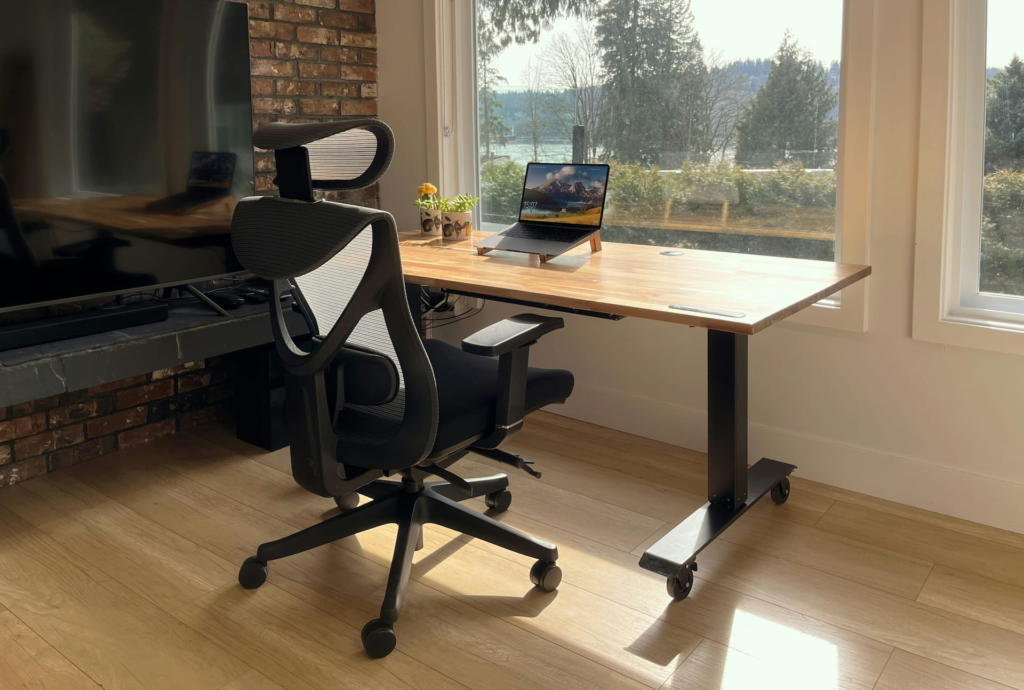
Your chair is the foundation of everything else. If your chair doesn’t fit your body, no amount of monitor adjustment or keyboard positioning fully compensates. The goal is a chair that supports your lower back in its natural curve, keeps your hips at or slightly above knee height, and lets your feet rest flat on the floor or a footrest.
The key adjustments:
Seat height — adjust until your knees are at roughly 90° with your feet flat. Your thighs should be roughly parallel to the floor, not angled sharply down or up.
Lumbar support — position it to support the natural inward curve of your lower back. It should make contact with your back without pushing you forward out of a natural seated position.
Armrests — set them so your shoulders are relaxed and your elbows are at roughly 90° when your hands are on the keyboard. Armrests that are too high raise your shoulders. Too low and you have no support.
Seat depth — you should be able to fit two or three fingers between the front edge of the seat and the back of your knees. Too shallow and your thighs aren’t supported. Too deep and the seat edge cuts into your legs.
For chair recommendations at every budget see our best ergonomic chair under $400 guide and most comfortable office chair for long hours guide.
If you’re choosing between Steelcase’s two most popular chairs our Steelcase Leap vs Series 1 guide breaks down the key differences.
2. Desk height
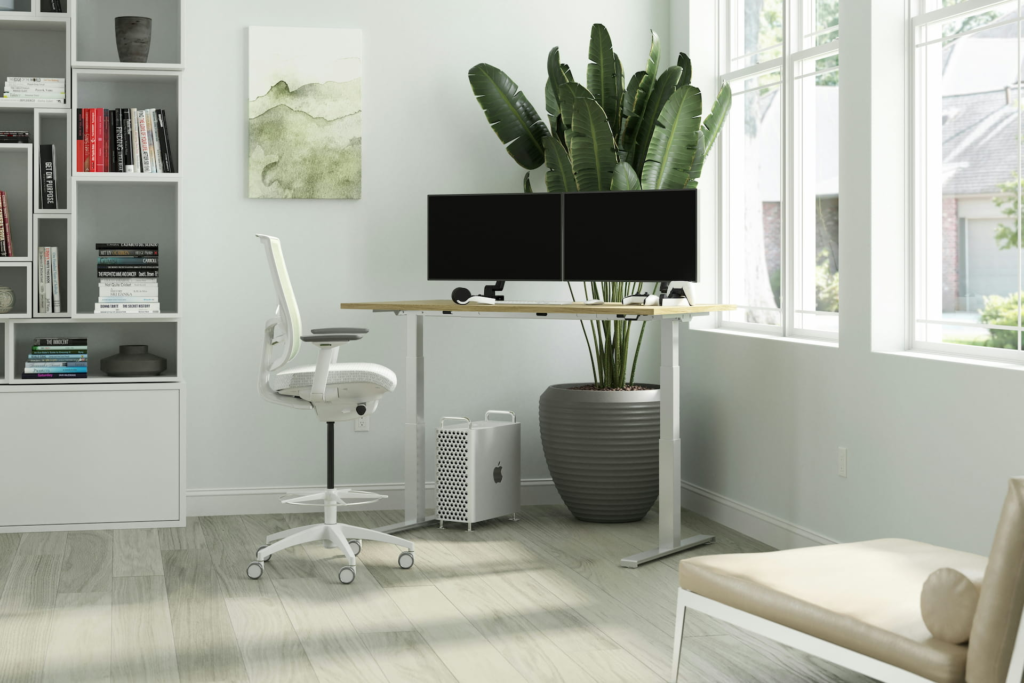
Once your chair is at the right height for your body, your desk needs to match. The goal is a desk surface that lets you type with your elbows at roughly 90° and your wrists in a neutral flat position — not angled up or down.
For most people sitting at a standard chair height, a desk between 28 and 30 inches works. Taller people need higher desks. The problem is most standard desks are fixed height and may not be adjustable.
If your desk is too high: Raise your chair until your arms are at the right angle, then add a footrest if your feet no longer reach the floor comfortably.
If your desk is too low: A monitor arm that raises your screen independently, or a desk riser, can help. A standing desk with height memory settings is the cleanest long-term solution.
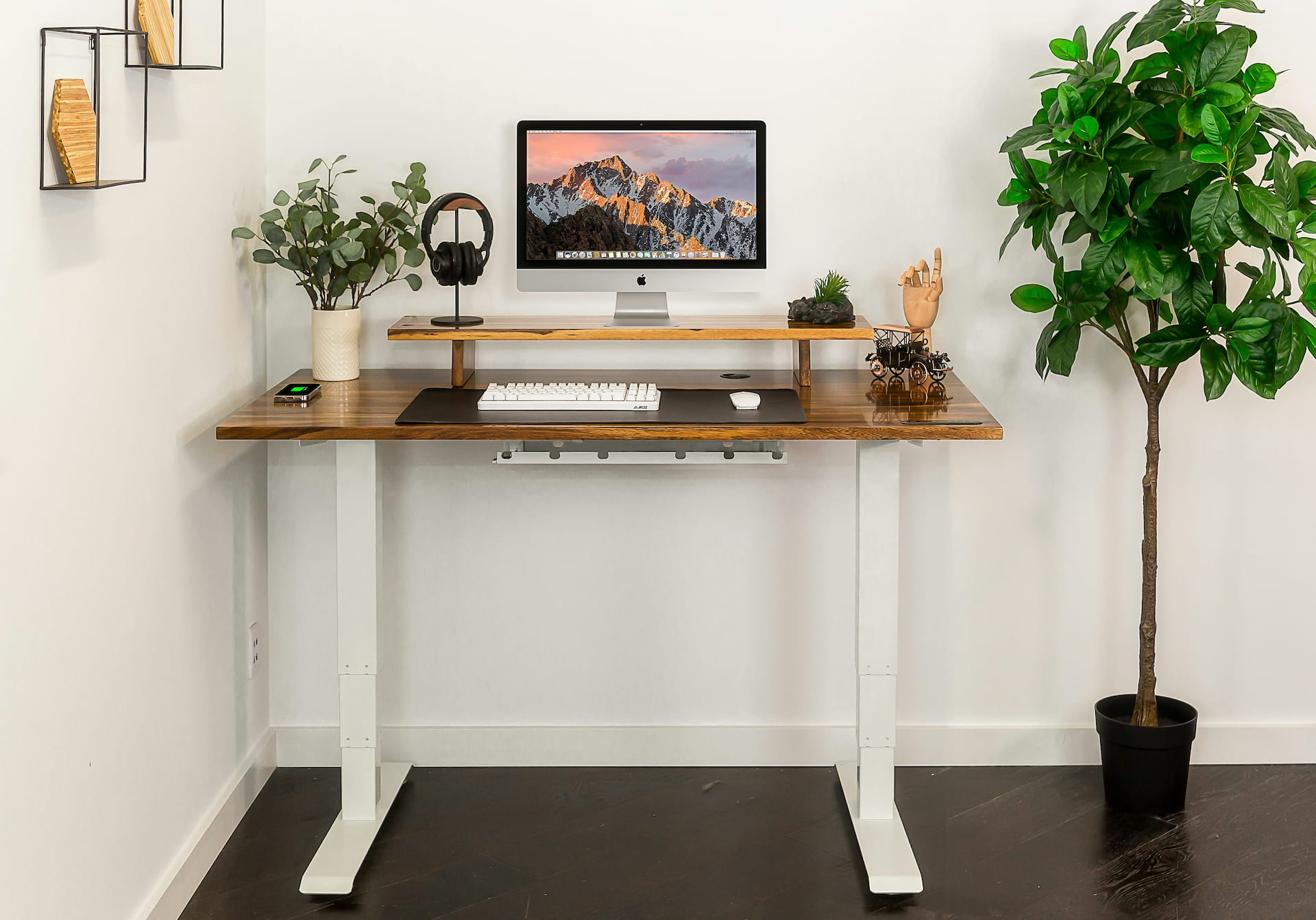
Standing desks alternate between sitting and standing throughout the day — reducing the accumulated physical load of staying in one position for hours. See our best standing desks guide for options at every budget. For affordable options our best budget standing desks guide covers six picks from $74.98 including electric options with memory presets.
Organization is part of ergonomics too — our office organization guide covers 15 products that keep your workspace functional and clutter free.
3. Monitor position
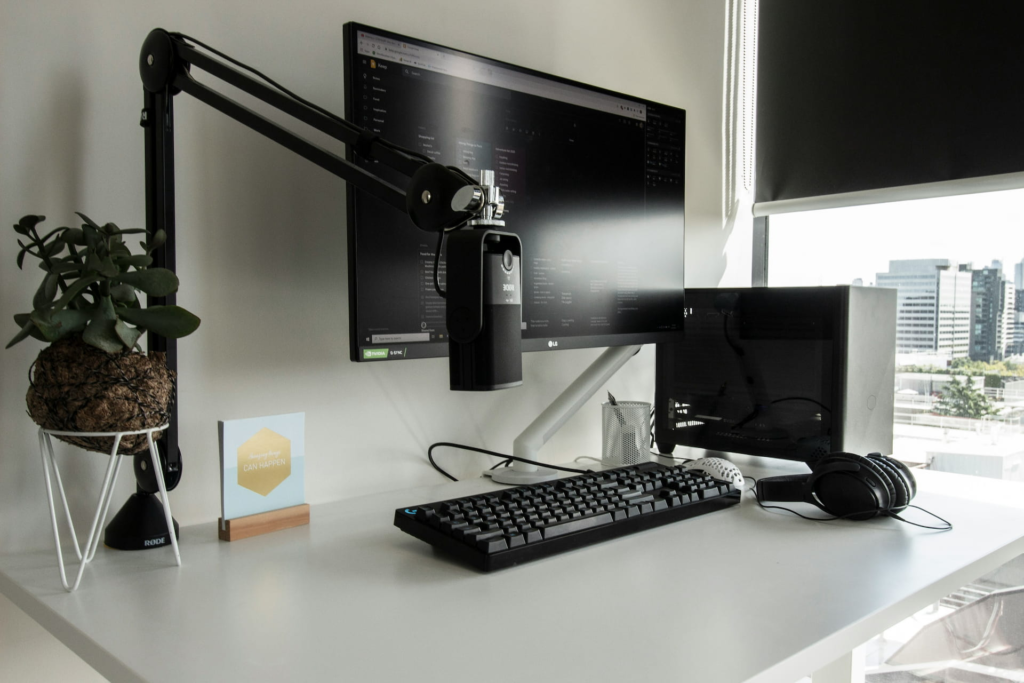
Monitor position is where most home offices get it wrong. The two most common mistakes are monitors too low (laptop flat on a desk) and monitors too close.
Height: The top of your monitor should be at or slightly below eye level when you’re sitting with good posture. If you’re looking down at your screen your neck is in a forward flexed position for hours — that’s what causes the neck and upper back pain most desk workers experience. A monitor arm or laptop stand fixes this.
Distance: Your monitor should be roughly an arm’s length away — about 20 to 30 inches from your eyes. Too close causes eye strain. Too far and you lean forward to read, which collapses your posture.
Angle: Tilt the monitor back 10-20° so the screen faces slightly upward toward your eyes. This reduces glare and keeps your neck in a more neutral position.
Dual monitors: If you’re running two screens, position your primary monitor directly in front of you and the secondary slightly to the side. Avoid placing them side by side at equal distance if you spend 80% of your time on one — that forces your neck to rotate constantly toward the primary screen.
For monitor arms that get your screen to the right height see our best monitor arm guide. For dual monitor setup specifically see our dual monitor setup guide.
Two screens or one wide one changes how you position everything else. Our ultrawide vs dual monitors comparison covers the ergonomics of each.
4. Keyboard and mouse
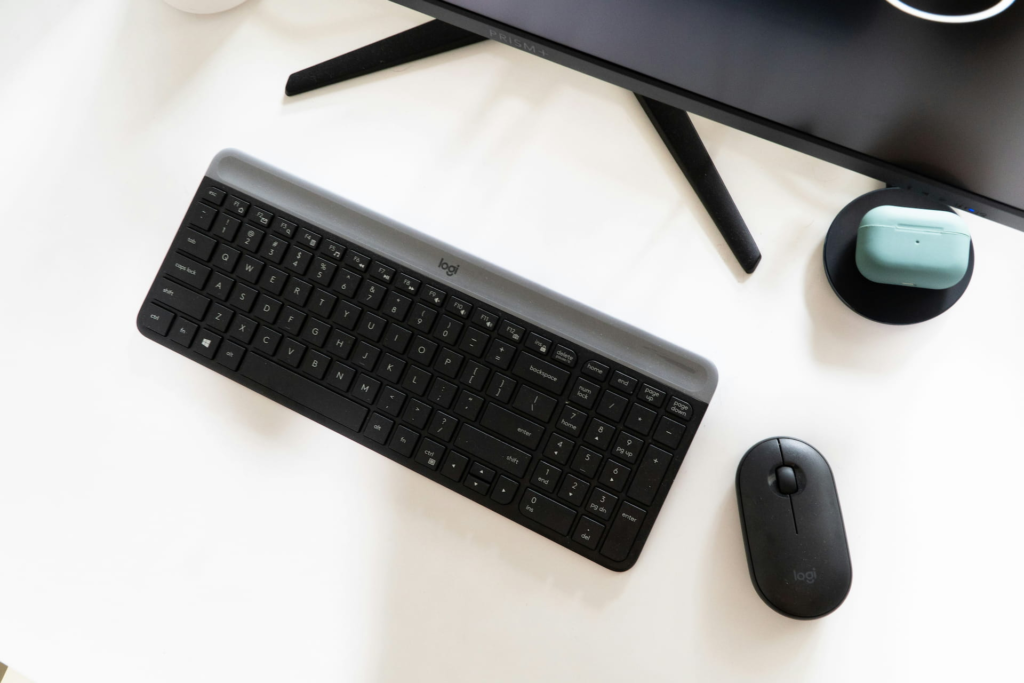
Your keyboard and mouse position determines your wrist and shoulder health over time. The goal is neutral wrists — flat, not bent up or down — and relaxed shoulders with elbows close to your body.
Keyboard position: Place the keyboard close enough that your elbows stay near your sides when typing. Reaching forward for the keyboard pushes your shoulders into a rounded position. Most people benefit from a negative tilt (front of keyboard slightly higher than back) which keeps wrists in a flatter position.
Mouse position: Keep the mouse close to the keyboard so you’re not reaching across your desk to use it. The further your mouse is from your body the more shoulder strain accumulates over the day.
Ergonomic keyboards with a split design keep your wrists in a more natural position compared to standard flat keyboards — worth considering if you type for long stretches daily. For dedicated ergonomic keyboard options our best ergonomic keyboard guide covers seven picks from $13.90 to $319.95 including split, wave, true split and mechanical options.
Ergonomic mice — vertical mice specifically — keep your wrist in a handshake position rather than the palm-down pronated position of a standard mouse, significantly reducing forearm strain. See our best ergonomic mouse guide and best wireless keyboards and mice guide for specific recommendations.
For the best ergonomic mouse comparison our MX Master 3S vs MX Vertical guide covers both options at the same $79.99 price point.
5. Footrest
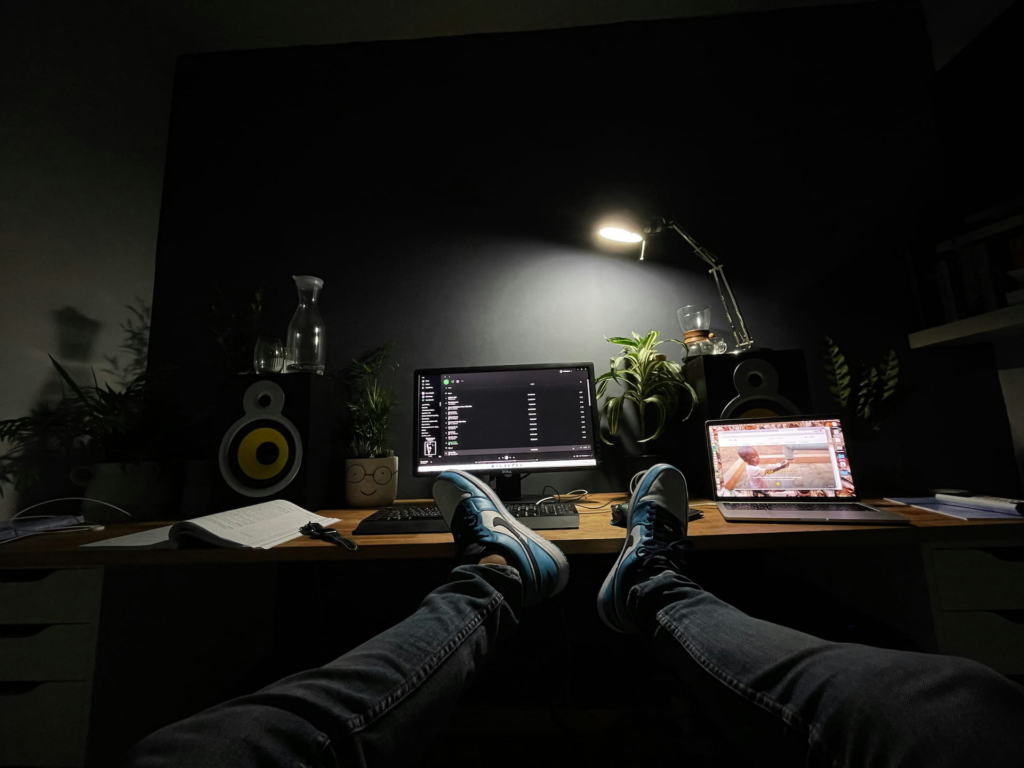
A footrest is necessary any time your feet don’t reach the floor comfortably after your chair and desk are at the right height for each other. Feet that dangle or stretch to reach the floor tilt your pelvis and flatten the natural curve of your lower back — contributing directly to lower back pain over time.
The right footrest brings your feet to a supported position where your knees stay at roughly 90° and your thighs are parallel to the floor. It doesn’t need to be complex — even a simple adjustable platform makes a significant difference.
If you tend to shift around during long sessions a rocking footrest keeps your legs slightly active and reduces the stiffness of completely static positioning. See our best office foot rest guide for six options from $19.99.
6. Seat cushion
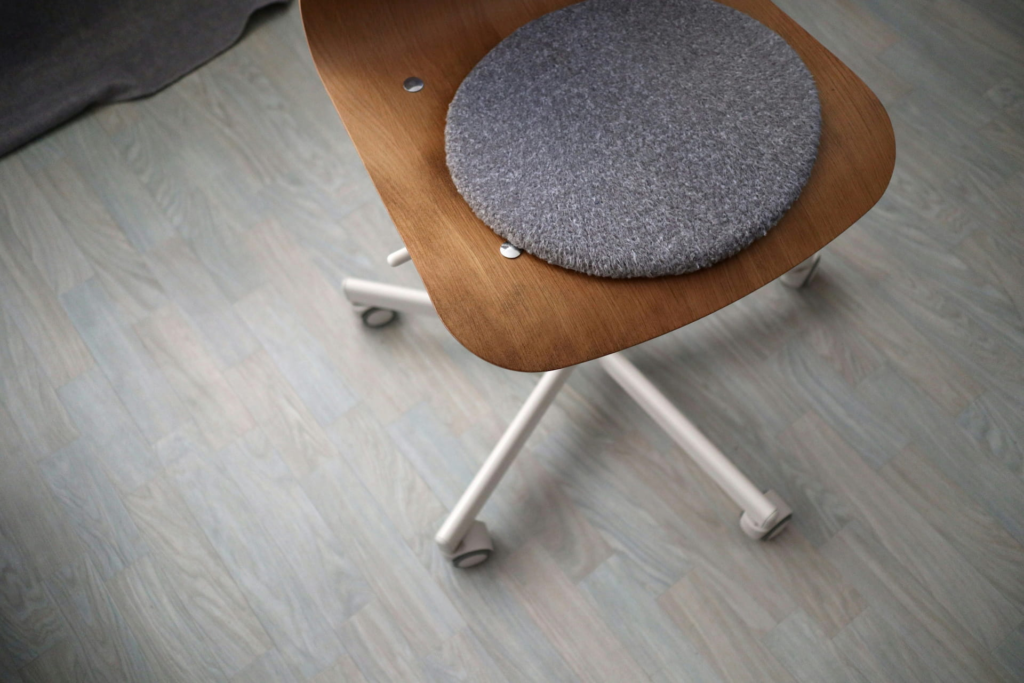
Even a decent chair benefits from a seat cushion if you sit for long hours. A cushion adds pressure relief to the areas your chair foam doesn’t adequately support — particularly the tailbone and sit bones that bear the most weight during sustained sitting.
The most effective seat cushions use memory foam or gel to distribute your weight more evenly across the seat surface. Coccyx cutout designs specifically relieve tailbone pressure which is one of the most common complaints from people who sit all day. A lumbar cushion used alongside a seat cushion addresses both lower and upper back support simultaneously.
Worth being clear — a seat cushion is a complement to a good chair, not a replacement for one. If your chair is fundamentally the wrong size or shape for your body, a cushion reduces discomfort but doesn’t solve the underlying fit problem. See our best seat cushions guide for options at every price point.
7. Lighting
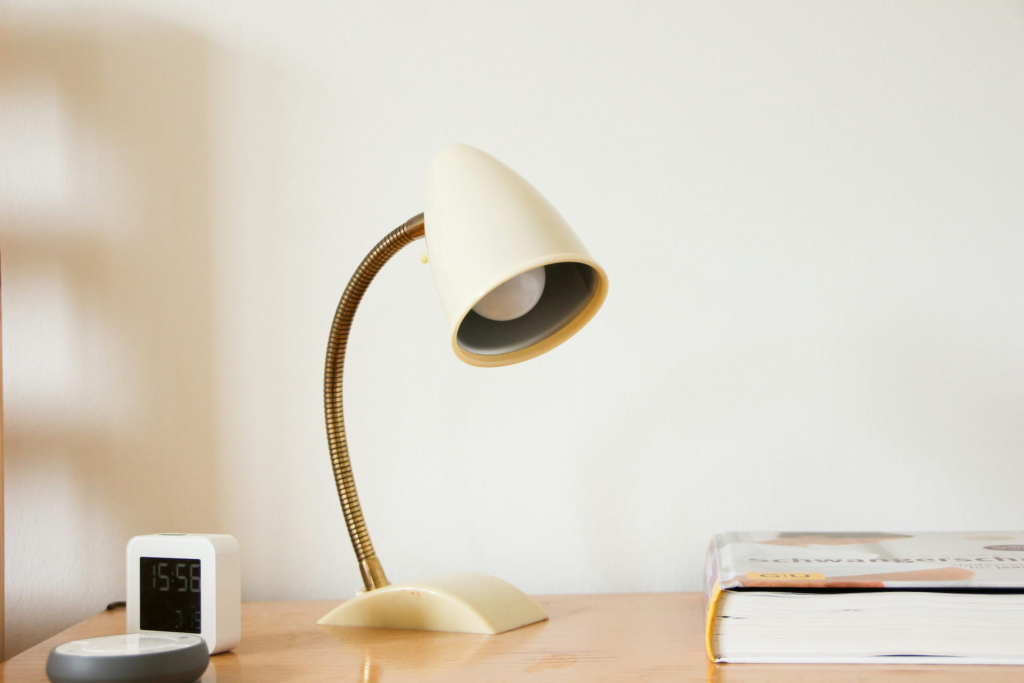
Lighting affects eye strain more than most people realize. The main problems are screens that are significantly brighter than the surrounding environment, and light sources that create glare on your monitor.
For lighting specifically our home office lighting guide covers every category from task lighting to overhead panels.
Ambient lighting: The room around your monitor shouldn’t be dramatically darker than your screen. A lamp that provides warm ambient light behind or beside your monitor reduces the contrast your eyes have to constantly adjust to. See our best desk lamp guide for options.
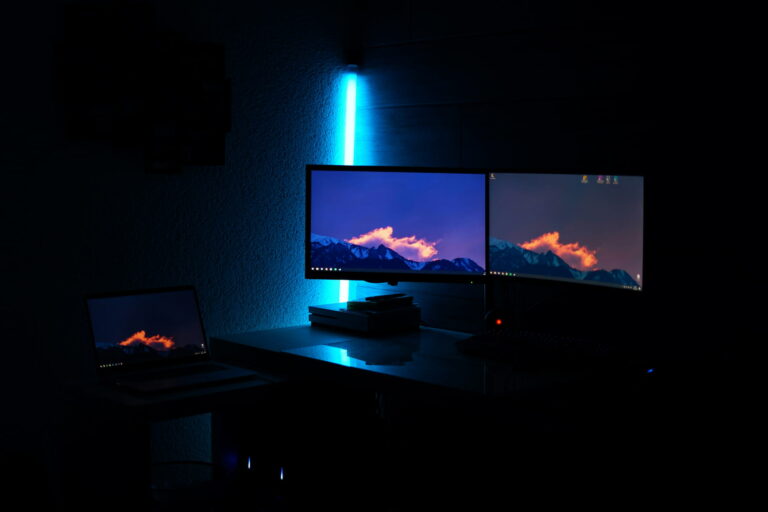
Monitor light bars: A light bar that clips to the top of your monitor illuminates your desk surface without creating reflections on the screen — useful if you work with physical documents alongside your screen. See our best monitor light bars guide.
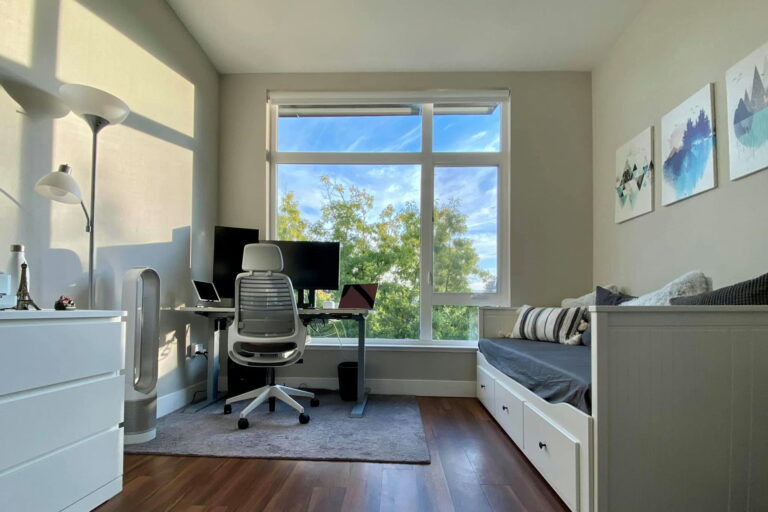
Natural light: Position your desk so natural light comes from the side rather than directly behind your monitor (which creates glare) or behind you (which creates backlighting issues on video calls).
Monitor brightness: Match your monitor brightness to your environment rather than running it at maximum. A monitor that’s significantly brighter than the room around it causes eye fatigue over a full day.
For video calls, a dedicated webcam is worth considering. See our best webcam for Zoom guide for six options at every budget.
8. Taking breaks

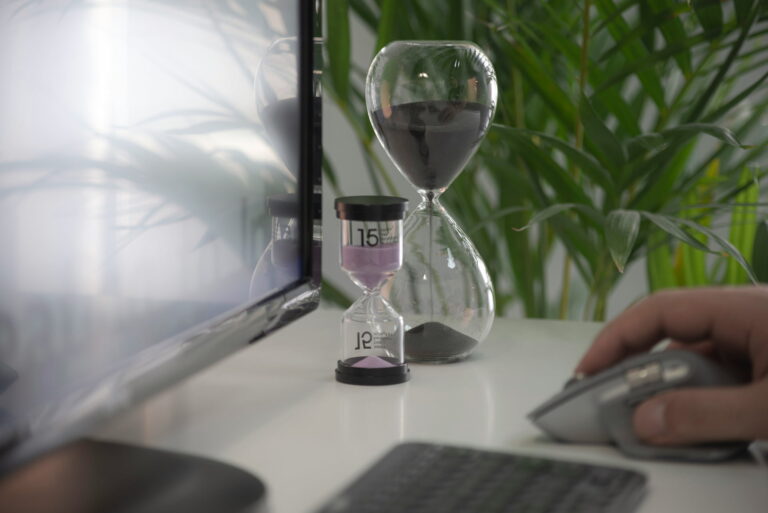
No ergonomic setup eliminates the need for movement breaks. The human body isn’t designed for sustained static postures regardless of how well positioned they are. Muscles fatigue, circulation slows, and concentration drops when you stay in one position for too long.
For under desk treadmills our WalkingPad vs GoPlus comparison covers the premium vs budget decision at two very different price points.
If you want to stay active while working, a walking pad under your standing desk is one of the most effective changes you can make. See our best walking pads guide for six tested options.
The 20-20-20 rule for eyes: Every 20 minutes look at something 20 feet away for 20 seconds. This resets the focal muscles in your eyes that strain from sustained close-focus screen work.
Movement breaks: Stand up and move for 1-2 minutes every 45-60 minutes. Walk to get water, do a short stretch, step outside briefly. The specific activity matters less than the interruption to sustained static sitting.
Standing desk use: If you have a standing desk alternate between sitting and standing throughout the day rather than standing for extended periods — prolonged standing creates its own fatigue. 20-30 minutes standing followed by sitting works well for most people.
Micro-movements: Shifting your weight, adjusting your position, rocking slightly in your chair — these small movements throughout the day reduce the load on any single muscle group and are better than staying perfectly still in even a well-positioned posture.
Ergonomic setup checklist
Chair:
- ☐ Seat height — knees at 90°, feet flat
- ☐ Lumbar support positioned at lower back curve
- ☐ Armrests at elbow height, shoulders relaxed
- ☐ Seat depth — two fingers between seat edge and knees
Desk and monitor:
- ☐ Desk height — elbows at 90° when typing
- ☐ Monitor top at or slightly below eye level
- ☐ Monitor 20-30 inches from eyes
- ☐ Monitor tilted back 10-20°
Keyboard and mouse:
- ☐ Keyboard close enough that elbows stay near body
- ☐ Wrists flat when typing — not bent up or down
- ☐ Mouse close to keyboard, no reaching
Supporting accessories:
- ☐ Footrest if feet don’t reach floor comfortably
- ☐ Ambient lighting — room not dramatically darker than screen
- ☐ Natural light from the side not behind monitor
Habits:
- ☐ 20-20-20 rule for eye breaks
- ☐ Movement break every 45-60 minutes
- ☐ Alternate sitting and standing if standing desk available
Continue reading
Frequently asked questions
How long does it take to notice the difference from an ergonomic setup?
Most people notice reduced afternoon fatigue and less end-of-day neck and back stiffness within the first week of a properly set up workstation. Chronic issues that have built up over months of poor positioning take longer to resolve — typically 2-4 weeks of consistent correct positioning before significant improvement.
Do I need to buy expensive equipment for an ergonomic setup?
Not necessarily. The positioning adjustments in this guide cost nothing. A footrest at $20 and a monitor stand at $25 cover the most impactful physical changes for most people. A quality ergonomic chair is worth the investment if you sit 6-10 hours daily — but the chair works better when the rest of the setup is also correctly positioned.
What’s the single most important ergonomic change most people can make?
Getting the monitor to eye level. Most laptop users and many desktop users work with their screen too low — looking down for hours is the primary driver of neck and upper back pain for desk workers. A monitor arm, laptop stand, or even a stack of books under your monitor costs almost nothing and makes an immediate difference.
Is standing all day better than sitting?
No — prolonged standing creates its own problems including lower back pain, leg fatigue, and varicose veins. The goal is movement variety rather than replacing sitting with standing. A standing desk is most beneficial when you alternate between positions throughout the day rather than standing for the full workday.
Last updated July 2026.